


When you need to troubleshoot or gain insight into Windows systems, Sysinternals tools are among your best options. In case you are not familiar with the Sysinternals suite, it is a collection of free tools provided by Microsoft. Typically, these utilities go way beyond the functionality of the native Windows tools and provide some fairly advanced capabilities.
There are dozens of different Windows Sysinternals tools, all of which can be downloaded for free. Let's take a look at five particularly useful tools.
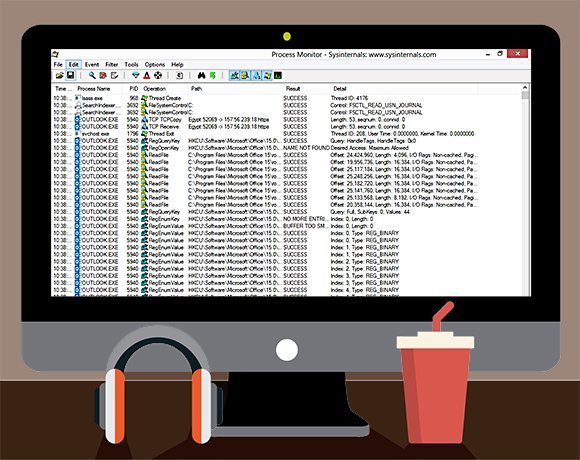
Process Monitor is arguably the best known Sysinternals tool. Its job is to provide detailed information about the processes that are running on your system.
While it's true that you can get detailed process information through the Windows Task Manager, Sysinternals Process Monitor provides far more information than Task Manager does, thereby giving you a more complete picture of what is going on in your system.
The utility not only tells you what processes are running but also provides information on what those processes are doing. For example, Process Monitor tracks file reads and registry queries associated with each process.
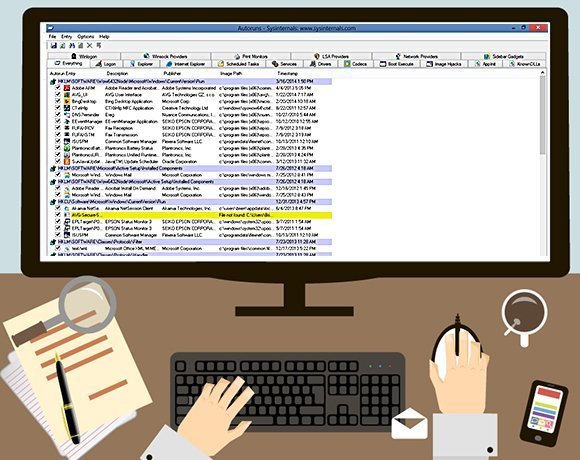
Desktop administrators can use Sysinternals Autoruns to determine which processes are configured to start automatically when a system boots. Some applications are notorious for installing unwanted components, and these components can rob a system of resources that could be better used for handling user workloads.
The Autoruns utility displays what runs at startup and breaks startup components down by category. For example, it can differentiate among services, drivers, gadgets, etc. You can use the utility to disable any unwanted components.

Active Directory Explorer can be useful for anyone who periodically needs to troubleshoot, query or modify the Windows Active Directory. Microsoft provides several native tools for interacting with the Active Directory, such as the Active Directory Users and Computers console or the Active Directory Domains and Trusts console. The Active Directory Explorer picks up where these tools leave off.
The tool provides a more comprehensive view of the Active Directory and its objects and their properties. In addition to enabling IT to modify the Active Directory, this tool has a built-in search function to help you to find what you are looking for. The software can even take point-in-time snapshots of the Active Directory, and you can do side-by-side snapshot comparisons.
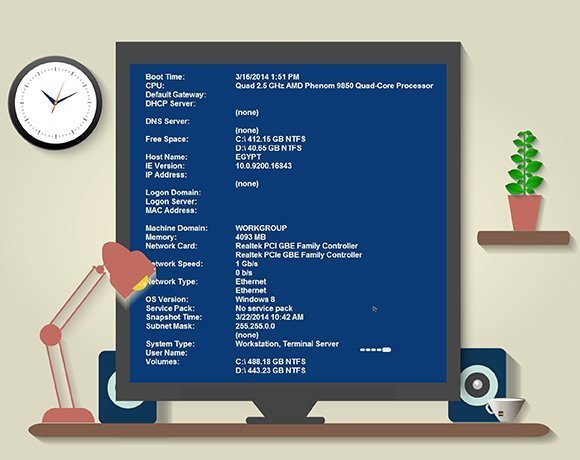
BgInfo can help anyone who needs to keep track of a lot of systems -- physical or virtual. This simple utility replaces the desktop wallpaper with detailed information about the system, including such things as the operating system version and the IP address.
BgInfo may be especially useful for organizations that have a large number of virtual machines, because it can be difficult to tell at a glance which VM is currently being displayed on a console.
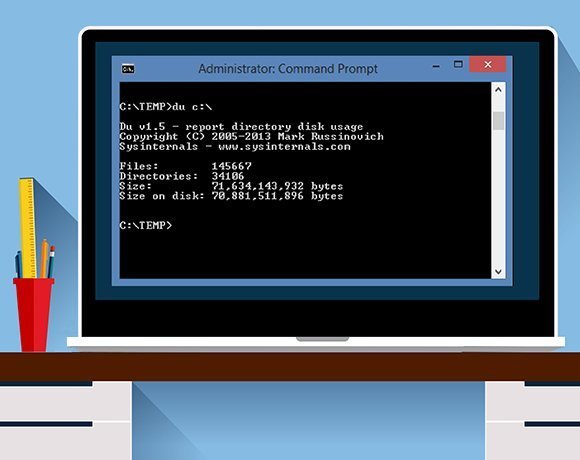
Sysinternals Disk Usage is a command-line tool for determining the amount of space that system folders are consuming. It can help admins figure out where your disk space went. It is also useful if you need to trim down virtual desktop images because it can show how disk space is being used.
At its simplest, you can use the Disk Usage tool by specifying the DU command, followed by the path that you want to analyze. However, there are also a number of command-line switches that you can use, including an option to export verbose information to a comma separated values, or CSV, file.
There are many excellent Sysinternals tools beyond the five that I have covered. I would encourage you to explore some of the other tools.