There are numerous Microsoft Windows 10 features that improve everything from IT's management processes to endpoint security.
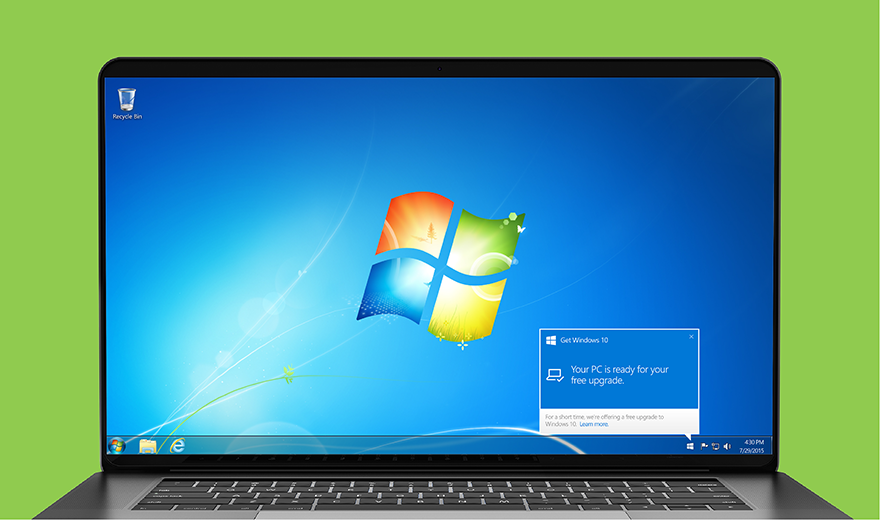
With end-of-life dates looming for previous Windows OSes, particularly Windows 7, IT professionals should get to know the most important Windows 10 features and how they can improve the Windows 10 desktop experience. With a focus on security, usability and mobility, Windows 10 makes the jobs of users and IT pros easier.
Some of these Microsoft Windows 10 features work automatically, while certain key features require administrative action. IT must understand the benefits of these features and how to provide the optimal Windows 10 desktop experience.
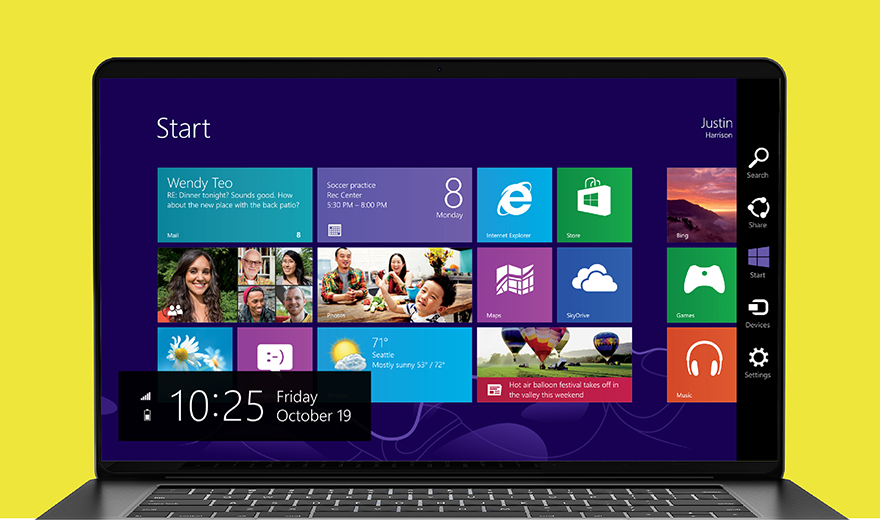
The process of migrating from one OS to another is riddled with potential pitfalls for IT and users alike. Microsoft hopes to end these Windows OS migration inconveniences by making Windows 10 its final OS.
Completing a Windows OS migration comes with challenges such as transferring user data, potential compatibility issues, user frustration with the new OS, different management practices and more. With an end to traditional Windows upgrades and Windows as a service taking their place, IT and users can rest assured that if these issues arise they should be on a much smaller scale.
Windows as a service separates updates into two categories: quality and feature updates. Feature updates are set for biannual releases and contain new features and tools, whereas quality updates include more urgent patches and bug fixes that Microsoft pushes out at least once a month. This approach allows Microsoft to continuously update features and security in Windows 10 rather than releasing a completely new OS every few years
Because of Windows as a service, IT has less flexibility when it comes to deferring or ignoring updates. With previous OSes, IT could delay updates indefinitely. Microsoft removed this flexibility with Windows 10 to ensure its desktops are all fully updated or close to it.
IT cannot delay security updates as long as it can delay feature updates because the feature updates aren't as crucial as day-to-day security.
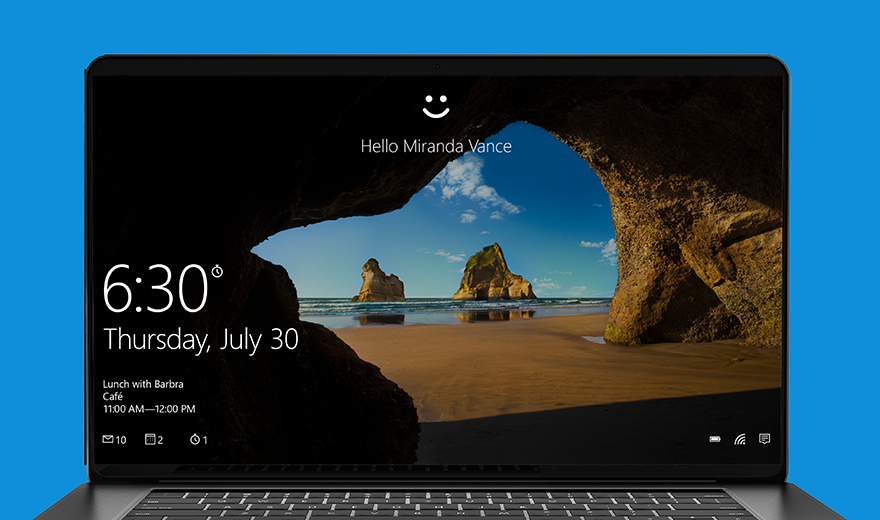
For organizations that require strong authentication for their users, Windows 10 offers Windows Hello for Business.
With Microsoft Windows Hello, IT can enforce two-factor authentication or, hardware permitting, various biometric authentication factors including fingerprint, iris and facial recognition. Using a biometric factor -- to go along with a typical password -- dramatically decreases the risk of breaches from weak passwords and phishing. Biometric data doesn't enter the company network and is encrypted on the device itself to ensure hackers cannot access it.
To take advantage of the Microsoft Windows 10 features for authentication, users' devices must have hardware to match the Windows Hello for Business authentication method IT chooses. A typical laptop or PC camera can perform iris scanning, and many endpoints have built-in scanners for fingerprint authentication.
For facial recognition, however, Windows Hello for Business requires a 3D infrared camera; this technology is atypical for most endpoint devices. Facial recognition technology might be a worthwhile investment for executives and other key users to improve security, but for the typical enterprise user, a fingerprint or iris scan should suffice.

The Microsoft Cortana digital assistant can help users adjust to changes in Windows 10, such as new application and file locations, desktop policies, and tools in the place of old ones.
Cortana eases this transition to Windows 10 and helps users determine the location of anything that might be difficult to find. This is far from Cortana's only function; it can perform calculations and unit conversions, set reminders and schedule events. The Microsoft Cortana digital assistant can easily integrate with Office 365 to expand its functions and interact with the Office suite, including integration with Outlook's calendar.
Microsoft originally designed Cortana as a mobile assistant, but with Windows 10, desktop users can input natural language queries and commands. The Microsoft Cortana digital assistant can search the desktop for settings, files, applications and more, and search the internet or use local tools to perform simple functions.
IT has the option to enable spoken commands, but in office settings with many users, this option isn't realistic because Cortana may have trouble sorting through all the noise. Instead, Cortana's search bar should function well enough to help users navigate their desktops and answer their questions.
Cortana does come with some data privacy concerns, however, because it collects personal data so it can anticipate users' needs and make suggestions for them. The cost of enabling Cortana is freely providing Microsoft with users' search history or, if IT enables voice commands, all of the audio that the computer's microphone can pick up. Because of these privacy questions, many IT departments may choose to disable Cortana.
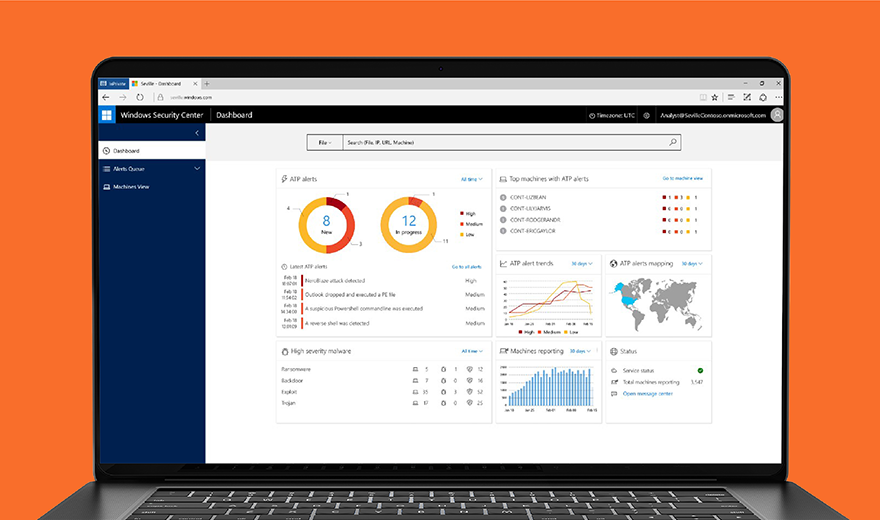
The latest Windows Defender features for Windows 10 add security without sacrificing simplicity for users.
A range of Windows Defender features in Windows 10, including Advanced Threat Protection (ATP), can help protect users and organizations' networks. Through behavioral analysis of user actions, such as the files a user accesses and the searches he enters in his browser, Windows Defender ATP can identify suspicious activity and potential breaches with comprehensive endpoint monitoring.
IT can use the Windows Defender ATP portal to monitor endpoints from one central console. It also shows IT the point of entry for any breaches with its root cause analysis capabilities.
Another useful Windows Defender feature is Application Guard, which isolates potentially dangerous browser sessions in a virtual machine to ensure that security breaches don't affect the desktop or network. With System Center Configuration Manager or Microsoft Intune, IT can run Application Guard on all of its desktops.
IT can use Windows Defender Exploit Guard, the successor to the Enhanced Mitigation Experience Toolkit, to protect apps and networks from malware by monitoring and limiting folder access. Other Windows Defender features don't limit permissions and prevent malware changes the way Exploit Guard does, making it a crucial addition to the new Microsoft Windows 10 features. Where other Windows Defender tools aim to prevent attacks, Microsoft designed Exploit Guard to limit the damage once a breach occurs.
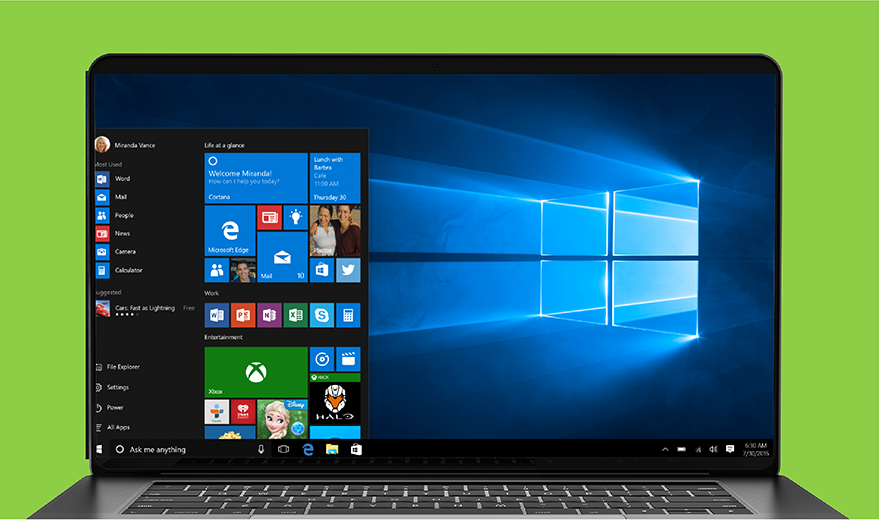
Windows 10 provides a Start menu that encompasses what users and IT liked about Windows 7's menu, while also adding new features to simplify user interaction.
Organizations did not widely adopt Windows 8 for many reasons, but a common criticism was the removal of the traditional Start menu. The return of the classic Start menu in Windows 10 isn't groundbreaking, but it simplifies user interaction with the OS.
The shortcut to the Windows 10 classic Start menu is in its traditional location: the bottom-left corner of the toolbar. The Windows 10 Start menu takes some elements of Windows 8's more mobile-oriented menu interface, such as the applications sidebar, which users or IT can customize based on which applications the end-user needs to access quickly.
The Start menu automatically displays applications and tools in alphabetical order. IT can, however, set a uniform interface for all users or user groups. With Group Policy settings, IT can define the Windows 10 classic Start menu interface across the organization using a simple XML file.
Users can enter queries with Cortana to find files, tools and applications in lieu of the Start menu, if IT enables Cortana. If users do not have access to Cortana, they can use the search bar function to supplement the Windows 10 classic Start menu.