Lewis and Clark needed Sacagawea to help get them across the country when they endeavored to map the new territory added in the Louisiana Purchase. Likewise, IT professionals set to prepare for Windows 10 need some guidance of their own.
There are numerous factors for IT pros to consider. Maybe they're embarking from Windows 7 or 8 or an earlier version of the OS. Perhaps they must decide between an in-place upgrade or a clean installation.
Whatever the case may be, there are twists and turns along the way that they need to know about to avoid going off the trail. The right directions can help them prepare for Windows 10 and safely reach their destination -- and these four considerations should be top of mind to get there.
The version of Windows that users work with before migrating to Windows 10 will affect the transition process.
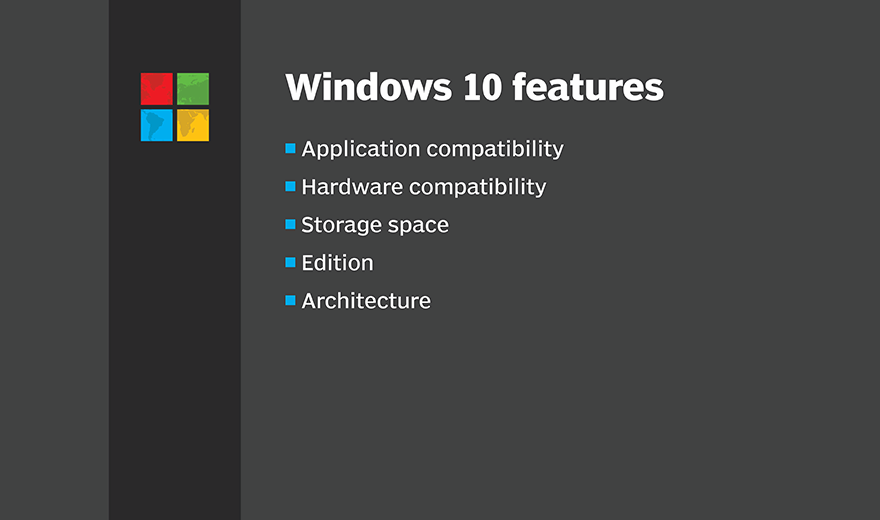
For Windows 7 or 8 shops, the OS must be activated and have all the latest updates in place before they can move to Windows 10. If everything is up to date and Windows Update is active, the device is ready for the upgrade.
A device migrating to Windows 10 requires about 3 GB of space to hold the OS. The architecture and the edition of the previous version of Windows the user had carry over to Windows 10 in the case of an in-place upgrade. For instance, a 64-bit version of Windows 7 transfers to a 64-bit version of Windows 10. Likewise, Windows 7 Pro Edition transfers to Windows 10 Pro Edition. If IT pros want to move users to a different edition or architecture, they must perform a clean installation.
The process is a little more complex when migrating to Windows 10 from Windows XP. IT really has no choice but to perform a clean installation because Microsoft does not support an in-place upgrade from Windows XP to Windows 10. IT should test hardware and app compatibility any time it makes an OS migration, but because XP is an older OS, it is particularly important in this scenario. Some apps might need minor updates, while others simply won't work in Windows 10 due to licensing issues or missing installation media.
One way to get a grasp on all the apps in the network when migrating to Windows 10 is to use Microsoft's Assessment and Planning Toolkit. The toolkit inventories the apps and informs IT of any apps that might run into compatibility issues.
Similarly, Windows 10 is designed to work on newer devices, so many of the devices running Windows XP might not be up to speed. Even if the device meets Windows 10's minimum hardware requirements, that doesn't mean it can run the OS efficiently.
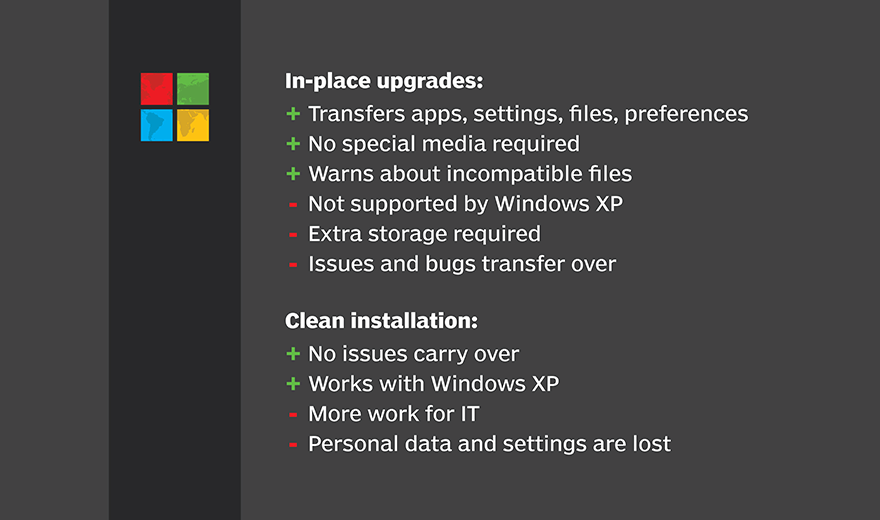
An important decision along the trail to Windows 10 is whether to perform an in-place upgrade or to go with a clean install.
A Windows 10 in-place upgrade has the benefit of transferring a user's apps, settings, files and preferences to the new OS. Other than the new interface and features, it's a pretty seamless transition. It does not require any special installation media. The Windows 10 in-place upgrade just runs through Windows Update or Windows Update Assistant. If any apps or files are not compatible with Windows 10, the upgrade warns IT what it might lose during the migration.
In-place upgrades aren't always an option, however. Microsoft does not support an in-place upgrade when moving from Windows XP. In addition, the device being upgraded to Windows 10 must have storage capacity available for all the existing files, as well as the new OS.
The other limitation to bear in mind is that while a Windows 10 in-place upgrade brings all the good stuff with it, it also transfers the baggage. Registry issues or erratic behavior will carry over from the previous OS. Finally, when performing an in-place upgrade, the user is locked into the architecture and edition he had previously.
A clean installation is essentially a fresh start. It resets everything, and no issues from the previous OS carry over. This means more work for IT and more of an adjustment for users who lose their personal data and settings. On the IT side, it means reinstalling the apps users work with and working with bootable media that contains the Windows 10 installer.
Whether IT picks a Windows 10 in-place upgrade or a clean install, it is critical to create a good backup of the old OS and data before making the move because things can easily go wrong.
Windows 10 app compatibility is critical because there are some legacy apps users can't survive without.
To bring legacy apps to Windows 10, IT can turn to the Application Compatibility Toolkit inside the Windows Assessment and Deployment Kit. The Compatibility Administrator within the toolkit enables IT to review a list of apps that are compatible and what they require to run on the new OS.
It also has shims, which are command-line tools IT can use to make an app run on Windows 10. If the Compatibility Administrator does not have the shim IT needs, IT pros can create them. IT can also use Compatibility Mode to force Windows 10 app compatibility for a particular app, or to make adjustments to individual aspects of the app.
Just because an app is compatible doesn't mean that every aspect of the app will work correctly in Windows 10. As a result, it is wise for IT to conduct a trial with specific users so they can identify where any issues might crop up.
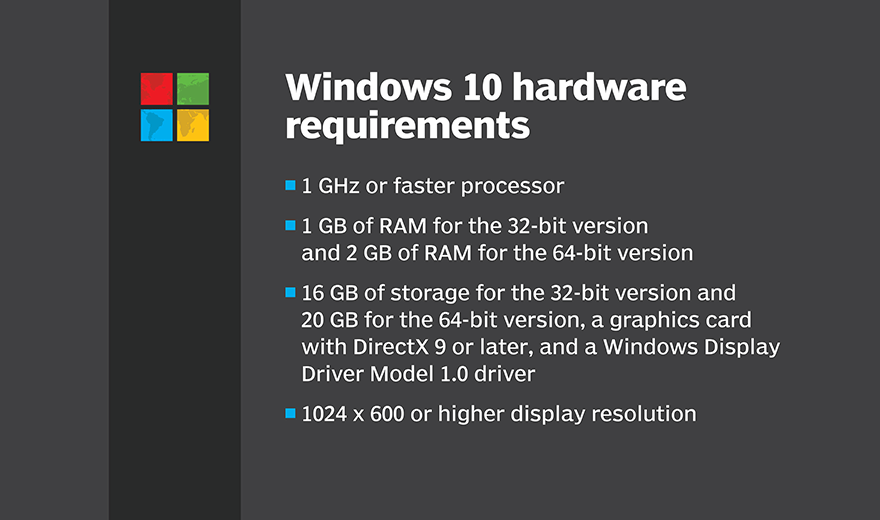
In terms of hardware compatibility, the device must have the following, according to Microsoft:
- a 1 GHz or faster processor;
- 1 GB of RAM for the 32-bit version and 2 GB of RAM for the 64-bit version;
- 16 GB of storage for the 32-bit version and 20 GB for the 64-bit version;
- a graphics card with DirectX 9 or later with a Windows Display Driver Model 1.0 driver; and
- a 1024 x 600 or higher display resolution
It is a good idea to exceed these requirements to ensure that the OS runs efficiently. It's also important to remember that certain features require special hardware to work, such as Windows Hello, which requires a 3D infrared camera to perform facial recognition.
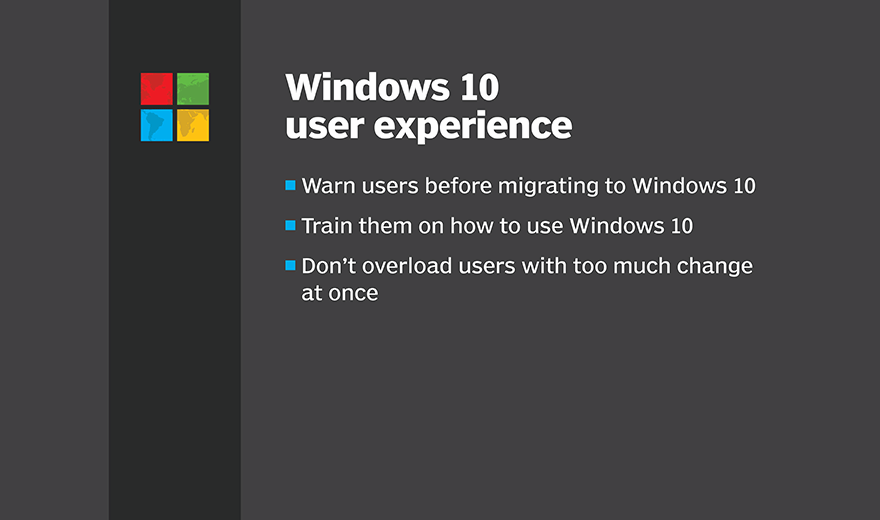
IT pros must keep users in mind when they decide to migrate to Windows 10. It's a bad idea to just spring the change on people.
To get the Windows 10 user experience off on the right foot, it's only fair to give users a warning that the change is coming, and to offer users some training on the OS. There will inevitably be some nuances that users don't understand, so training should reduce the number of help desk calls after the migration. If IT pros cannot do the training themselves, they should point users to resources, such as YouTube tutorials.
The OS change itself can be startling enough, so IT should wait to make any other major changes, such as upgrading applications.