Desktop administrators use the Windows command prompt regularly, but they may not realize that it includes features that can save them a lot of time. Here are several hidden command prompt tricks that can reduce the time it takes to perform common tasks. Note that some of these commands may not work with Windows XP, but all should apply to Windows 7 through Windows 8.1.
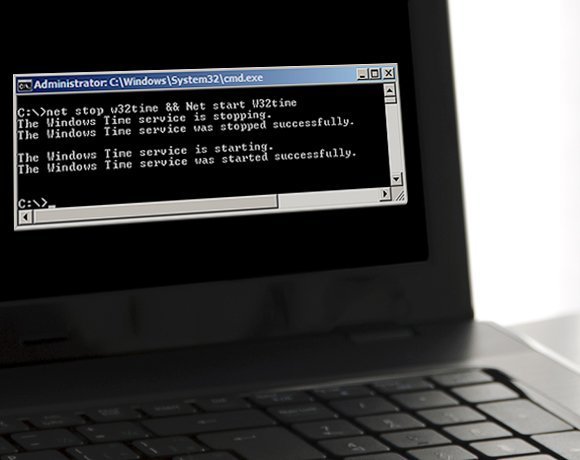
You can run multiple Windows commands in one go from the command prompt. For example, you can start or stop a service from a command prompt by typing "Net Start/Stop." What if you need to restart a service from the command prompt? In that case, you can use a double ampersand -- && -- which allows you to run multiple "Net" commands in one line to first stop and then restart the service.
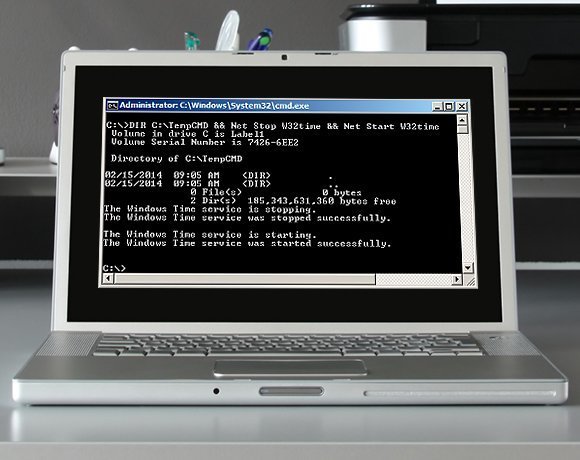
You can add another double ampersand at the end of the line to execute any other command. For example, the first command here is executed to list the files in C:\Temp directory, and then next two commands are executed to stop and restart the Windows Time service.
Similarly, you can mix any Windows commands, but make sure to separate them with a "&&." This function also works for Windows XP.
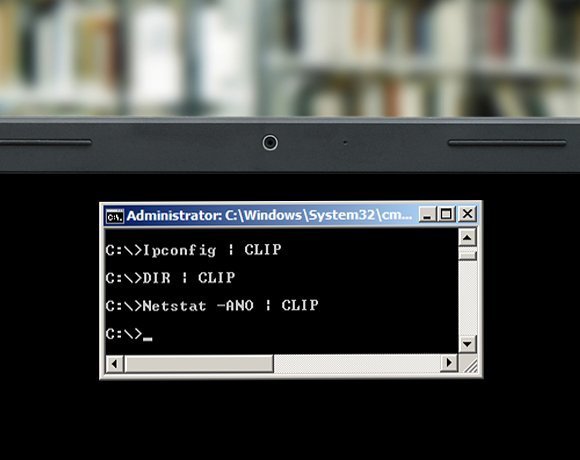
As you know, CTRL+C allows you to copy selected contents to Windows Clipboard, and the CTRL+V key combination is used to paste the contents from Windows Clipboard. In the command prompt, the CTRL+C key combination does not work. However, you can use the "clip" function, provided by the Windows 16-bit subsystem, to capture output of a command and store it in the Clipboard.
Note that this will work for any command.
Once stored in the clipboard, open Windows Notepad or an editor of your choice and use the CTRL+V key combination to read and paste the contents from the clipboard.
Be aware that this command isn't available in Windows XP, so you must copy it from a computer running Windows 7 or later to a Windows/System 32 directory.

The contents stored in Windows Clipboard can eat up memory. You must clear the Windows Clipboard to make sure memory used by the contents is available back to the operating system. To clear contents, use the command "Echo Off."
This is a special command, and when executed with the "Clip" command, it clears the contents from Windows Clipboard.

"Open command window here" is available on the right-click context menu of a folder in Windows Explorer. This command can save you a lot of time getting to folders via Command Prompt. You must hold the Shift key while you right-click the folder to see this action.
This action is available only on folders and not files, and open command prompt is not available on Windows XP. You must use Microsoft PowerToy for Windows XP to add this function to the right-click context menu of the folders.

You can also type "CMD" in the address bar of Windows Explorer to get to the Windows location of your choice. All you need to do is go to the folder location of your choice in Windows Explorer, put your cursor in the address bar, and then type "CMD.exe" or just "CMD."
You can switch to the windows location of your choice and in the next screenshot, type "CMD" to open the command prompt.
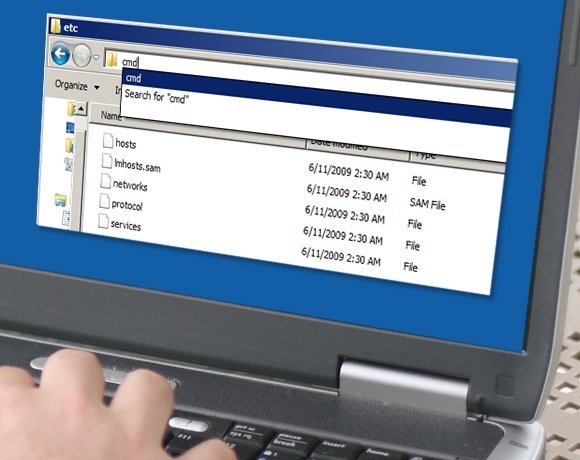
After switching to the Windows location of your choice, type "CMD" to open the command prompt. This function also works in Windows XP, as well as in later editions of Windows.

Keyboard Symbol ">" -- also known as Redirector -- allows you to store the output of a command in a text file. The use of ">" (Redirector) is commonly seen in batch scripting, but you can use it to capture the output of a command in a text file quickly as listed below:
DIR C:\TempCMD > MyOutput.txt
By default, Redirector does not capture errors returned by a command. If you need to capture errors also in the text file, then you must use "2>&1" at the end of the command line.
The first command is executed to stop a service named "W32TimeT." Since there is no service by the name of "W32TimeT," the command returns an error. The error is not captured in the text file, even if you use Redirector.
The second command uses "2>&1" to capture the output of the command with errors in the text file successfully. To quickly open MyOutPut.txt, run the "Start MyOutput.txt" command. This tip also works in Windows XP.

Do you wish to check all the commands you executed in the current command window session? If yes, then use the popular "Doskey" command with "history" switch. This will also work in Windows XP.

If you don't want to open a command prompt from the right-click context menu of the folder as explained previously, then just drag the folder and drop it to the command prompt. The only issue with this approach is that you must type "CD" before dragging the folder to the command prompt. This last command also works in Windows XP.
About the author:
Nirmal Sharma is a MCSEx3, MCITP and was awarded Microsoft MVP award in Directory Services. He specializes in Directory Services, Microsoft Clustering, Hyper-V, SQL and Exchange and has been involved in Microsoft technologies since 1994. Sharma can be reached at [email protected].
Now that you're an expert on the best command prompt tricks for Windows, here's another resource on tips and tricks for desktop management we think you might find helpful. Access this exclusive new resource from SearchEnterpriseDesktop.com's editorial team on managing desktops in today's modern IT environments now.
Free Download