Desktop management is much easier with virtual desktop infrastructure (VDI) because it gives IT a single, central image from which it can control hundreds or even thousands of desktops. It also grants users access to desktops and apps anywhere, anytime.
Still, it's not always a perfect system, and VDI issues on users' virtual desktops will no doubt lead to questions for your help desk. Fortunately, many of the hang ups -- such as password problems or no Internet connection -- have simple solutions. But your help desk needs to be ready to deliver.
Take a look at five of the most common VDI questions IT needs to be prepared to answer and why users ask them.

Let's be honest: VDI connection issues are almost always the user's fault. He may not be connected to the Internet or might not know how to bypass a Firewall or pay wall to gain access.
Network connection problems are not always user-based, however. Connectivity can be limited because the network isn't equipped to handle VDI. As a result, users might not be able to access their desktops, active desktops might crash or overall connectivity could be limited, which slows desktops down.
IT must prioritize network traffic to preserve a strong connection. Admins can do this by configuring routers and switches based on TCP port number or purchase more network bandwidth. If more bandwidth isn't in the budget, IT can maximize its existing bandwidth by turning to bandwidth optimization products, including F5 Networks' BIG-IP Appliance. Bandwidth optimizers feature plug-ins and templates that help IT configure appliances and balance the load.
IT can also combat network connectivity problems by monitoring network-level traffic, troubleshooting any issues that pop up, controlling quality of service, protecting network infrastructure and securing access controls.
Maybe most importantly, IT must tell users the truth. Delays and disruptions happen with VDI, so if a user can't connect immediately, admins should explain to users why that is happening and how they are working to solve it.
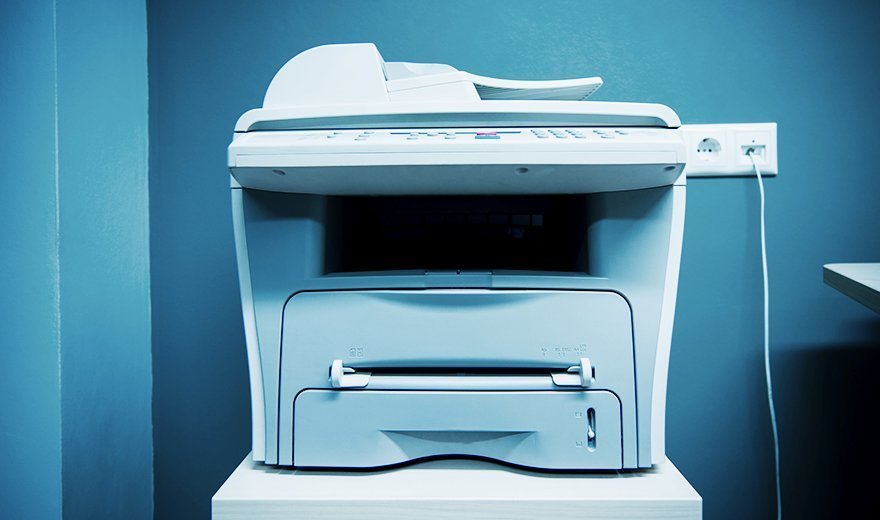
For something so simple, printing has always been a source of IT headaches. VDI printing can turn those headaches into full-on migraines.
Mobile devices add complexity because printing from a smartphone or tablet connected to VDI is a multi-step process. Before users can print, they have to make sure the file is in the right format. Then, they have to transfer that file locally to the device. Once that's done, they can print the file, but that usually requires some form of third-party software such as ThinPrint, triCerat or UniPrint. That process provides a lot of chances to make a mistake.
The most common source of printing chaos is simple: The printer redirection function sends the print job to the wrong place because of an incorrect configuration. Some other causes of printing problems include Terminal Services running on a domain controller, a missing print driver or a lack of printing permissions.

Many VDI deployments are non-persistent, which means IT spins up individual virtual desktops from a master image to be shared among all the users. The desktop reverts back to its original state when users log out, so nothing they do to customize the desktop will save.
For IT, the setup of a personalized desktop is a win. It improves image manageability and security while reducing storage needs. For the user, however, it can be frustrating and confusing. It's important for IT to communicate to users that their settings won't save so they know before they waste time making changes.
The counterpoint is persistent VDI, where each user gets his own desktop that runs from a separate disk image. This approach gives the user much more freedom, but it creates a more complex environment for IT to manage.

Passwords can easily become a source of annoyance with VDI. Generally, IT uses Exchange ActiveSync for device security because it can work with many different platforms and doesn't require the device to join a domain. Virtual desktops, on the other hand, usually connect to a domain and authenticate with Active Directory.
That means that users often have two different passwords and authentication methods, one for access to their device through Exchange ActiveSync and the other for virtual desktop access. If a user changes his Exchange password on a corporate PC or mobile device, for instance, the VDI login doesn't change, but users might not know that. It is important to communicate to your users that they will actually have two different passwords to keep track of.

Many users want to connect to their virtual desktops from smartphones or tablets. But, mobile devices last barely as long as a housefly: The average life expectancy is less than 18 months. That fast turnover means IT has to constantly reconfigure new endpoints that enter the environment. When virtual desktop users get new devices, IT has to reconfigure those endpoints, re-apply security policies and re-provision apps to work on the new device.
Obviously, that process can take some time, so users won't always have immediate virtual desktop access the second they power on a new device. IT must educate users about virtual desktop expectations and remind them of BYOD security policies around VDI to ensure that data stays protected at all times.
And -- fair warning -- once users gain virtual desktop access on their mobile devices, they are probably going to have more complaints. Users often gripe that the mobile screen is too small and the resolution is lacking, or the device isn't compatible with a mouse, or it doesn't support remote protocols. Ultimately, users should only access VDI on a mobile device in situations where they need to be on the move, such as at a conference or a remote work site. And they should only do so with apps built for a mobile device.