Microsoft brought big changes with Windows 10. And with those changes, big issues followed. The operating system is still relatively new to the IT world, and there are several kinks in the system to work out. Windows 10 Wi-Fi connectivity can go extinct in the blink of an eye, ads are still appearing all over the OS and Microsoft is mining user data left and right.
IT pros and users alike discuss several Windows 10 performance problems, but these top five take the cake for avoidable disasters. The breadcrumbs IT should follow are right here to help keep Windows 10 performance problems at bay.

Windows 10 Wi-Fi connectivity problems create a productivity blockade for businesses. There are two main reasons the connection fails and numerous ways to fix it.
People often experience Windows 10 Wi-Fi connectivity problems after upgrading from Windows 7 or 8. In these cases, the culprit is the legacy virtual private network (VPN) client. The VPN client has a specific registry key that offsets the Wi-Fi connection. But accessing and tweaking the registry is risky, because one false move can bring a computer to its knees. To solve the Wi-Fi problem and eliminate the risks of editing the registry, Microsoft introduced an automatic troubleshooting utility, called Windows Update Troubleshooter.
Device drivers are another perpetrator of Windows 10 Wi-Fi connectivity problems. If the device driver is from an earlier OS, it can misidentify the Wi-Fi adapter or be incompatible with Windows 10. The best way to handle a grumpy driver is to determine the state of the driver. If the network name does not match the hardware, it is best to uninstall and reconfigure the driver.
If problems still persist, run the network troubleshooter. Admins can use the tool to search and identify any issues on the network. If the Wi-Fi connectivity is off because of a particular program, bug or hardware, the troubleshooter tool should be able to find it.
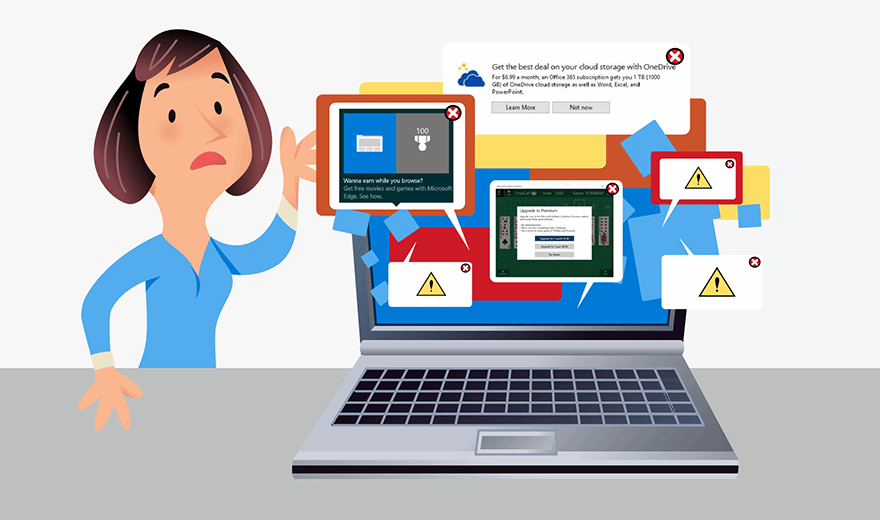
Pop-up ads are like a fly you keep swatting, but never actually catch. Windows 10 ads not only pop up on the lock screen, but also ask for user inputs and reviews of the OS. Microsoft is a business, but most Windows 10 customers who pay for the OS don't want to push through layers of ads on the lock screen.
Windows 10 ads are also ever present in the Windows Start menu and the Windows 10 Action Center. Most often, the ads suggest users purchase a specific Windows app or Windows service. Other times, they push Office or Skype, even if the user already has both apps installed on the OS.
Luckily, Windows 10 ads are easy to minimize. With every section Microsoft placed ads in -- the lock screen, Start menu and Action Center -- Microsoft also added an option to turn off suggestions. The button may look a bit different in each section, but the functionality is all the same. In fact, users can turn off the unique advertising ID to steer clear of all targeted ads.
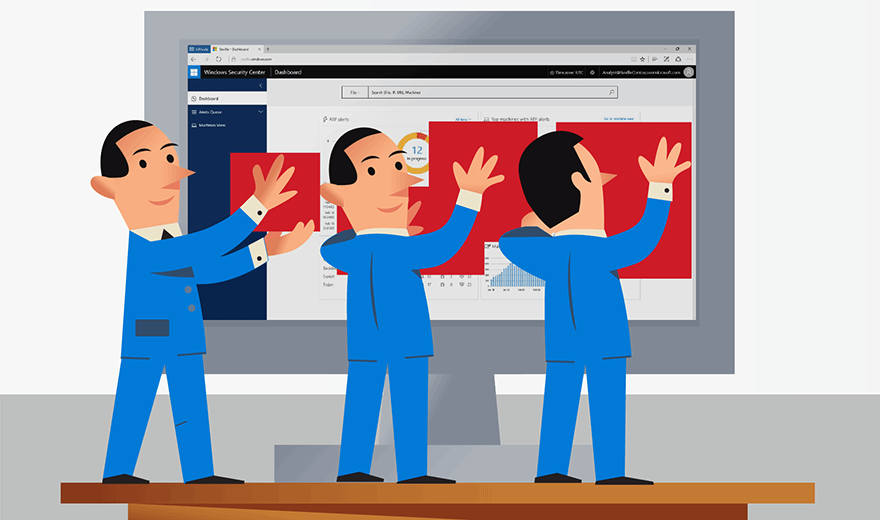
Windows 10 privacy issues have been a hot topic in IT since the OS came on the market. The OS provides users with five different data privacy options upon installation, but some say that is not a transparent snapshot of what Microsoft is actually collecting from users. Microsoft has issued rounds of adjustments and web add-on tools to brush away privacy concerns.
Windows 10 collects data ranging from security settings to crash data, but the biggest concern is on the data it harvests through Windows 10 applications. Microsoft collects the frequency with which end users work with apps, as well as how the end users actually use the apps. Microsoft claims it collects application data to personalize the OS experience and to identify any bugs or intrusions immediately.
Because of the unique advertising ID attached to each Windows 10 instance, many believe Microsoft is collecting data for advertising purposes, rather than for telemetry or personalization. The advertising red flag for users largely comes from specifically targeted ads, which many see as an invasion of user privacy that lets Microsoft profit off users' personal data.
To dam the data river, IT admins or users can switch the unique advertising ID off. They can also prevent Windows 10 from sending data about a user's typing patterns back to Microsoft and bar the OS from letting websites access the user's language list. Additional places to turn off data sharing are under the Location tab; Speech, Inking and Typing tab; Other Devices tab; and Wi-Fi Sense tab.

Windows 10 boot problems are one of the most common issues IT faces. Even if IT turns on the Fast Startup button in Power Options, they can still happen.
One way admins can combat delays is to install a solid-state drive (SSD) to take the place of the boot drive. The best way to install an SSD is to perform a complete backup of all data and do a clean install of the SSD. That way, IT can use the old boot drive as a data drive. The division of drivers gives more room for each drive to focus on more direct tasks, speeding up the boot time.
Other tips and tricks to avoid Windows 10 boot problems are to downsize Group Policy settings, keep IOPS above 2,000 and size the network for peaks, rather than averages. The more Group Policy settings admins put in place, the more time it takes for Windows 10 to set things up. When the IOPS is below 2,000, the boot and login times can grow tenfold. Sizing for network peaks prepares the network for bursts of usage.
Windows 10 automatic updates can derail productive workers if they happen at the wrong time. To control the update cadence, IT must pick one of the four Windows 10 update branches.
The Insider Preview Branch allows IT to receive updates before they are available to the general public. Insider Preview Branch updates are basically test runs for Microsoft and IT to tinker with, but are often full of bugs. The Current Branch is best left to consumers, because it sends secured updates automatically, with no warnings.
Most organizations opt for Current Branch for Business, which gives IT pros a four-month period to test out the latest build and eight months to apply it. The glaring issue with this branch is IT only has those eight months to either implement the latest build or they lose support. So, IT either has to accept that one of its applications is incompatible with the new update -- if that's the case -- or lose Microsoft support.
The most elusive branch is the Long Term Servicing Branch, specifically designed for industries that cannot afford downtime for updates, such as banks with automatic teller machines. IT admins receive system updates every nine to 18 months, and they have 10 years to apply it. Only companies who have a Volume Licensing agreement with Microsoft and run Windows 10 Enterprise are allowed to enter this option. IT also has the choice of opting out completely by selecting a mission-critical environment and only opting for security updates.