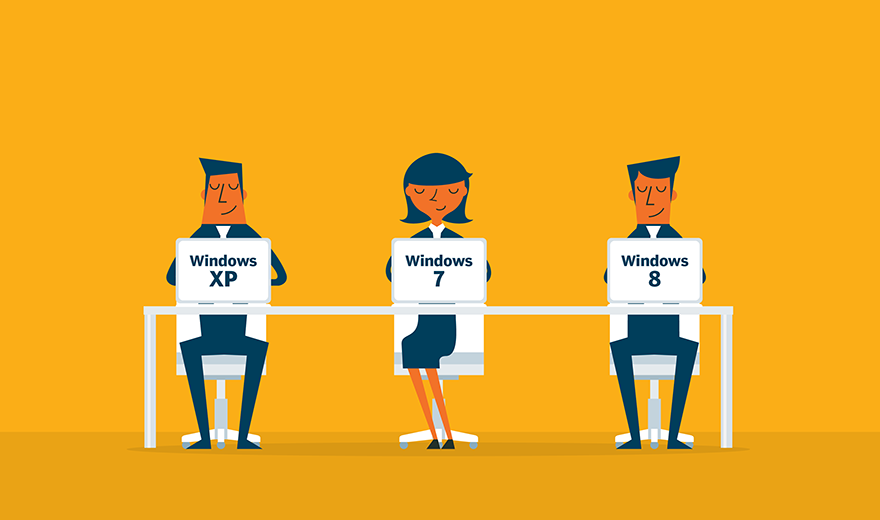
When IT is considering a transition to Windows 10, it must also consider what there is to gain from the upgrade.
Upgrading to a new OS can present a number of issues, including user data loss and compatibility issues. But for most organizations, the benefits of choosing a Windows upgrade path to Windows 10 far outweigh the costs.
Even without considering end-of-support dates for previous OSes, Windows 10 presents numerous benefits in terms of management, end-user experience and security. The OS introduces Windows Hello biometric capabilities, more advanced Group Policy Objects and improved Active Directory features.
IT professionals will still have their work cut out for them once they complete the transition to Windows 10, but they can make the journey much smoother if they plan the process carefully and weigh all the available Windows upgrade paths.
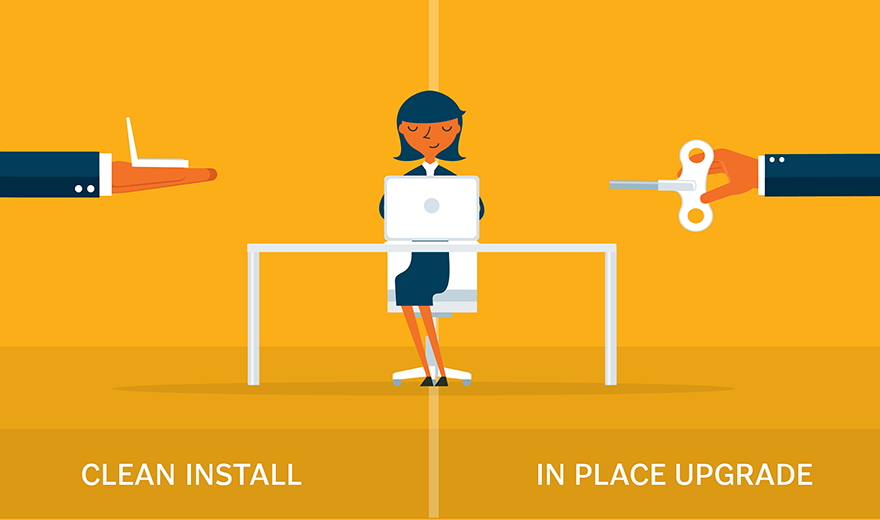
One of the first steps in the migration process for IT is choosing between a Windows 10 clean install and an in-place upgrade.
The two options each have significant pros and cons. A Windows 10 clean install is a fresh start for a desktop; it resets all the data and configurations so the transition to Windows 10 is as simple as possible. This ensures that any bugs from the previous OS don't carry over to Windows 10. A clean install is the only viable method of transitioning to Windows 10 from Windows XP.
The obvious downside of a clean install is also its greatest strength -- all of the previous desktop's data is gone. While this simplifies the transition and provides a clean slate on which IT can deploy Windows 10, it also removes all of the users' files, personalization and desktop configurations. For example, browser history and bookmarks do not carry over, which can slow down user acclimation to the new desktop.
An in-place upgrade may present a few more logistical challenges for IT pros, such as testing file and application compatibility and finding storage space for user data that is needed after the transition. But the end result is a more comfortable transition for users because their desktops are virtually unchanged. When a user logs onto his Windows 10 desktop, all of the compatible settings, applications and files remain.
However, IT must consider the potential bugs from the previous OS that can come along through the Windows upgrade path, as well.
When performing a Windows XP upgrade to Windows 10, IT pros should opt for a clean install of Windows 10.
Technically, IT could perform a leapfrog upgrade by upgrading from Windows XP to Windows Vista to Windows 7, and then finally to Windows 10, but there is plenty of room for error along the way, and Microsoft does not support this method.
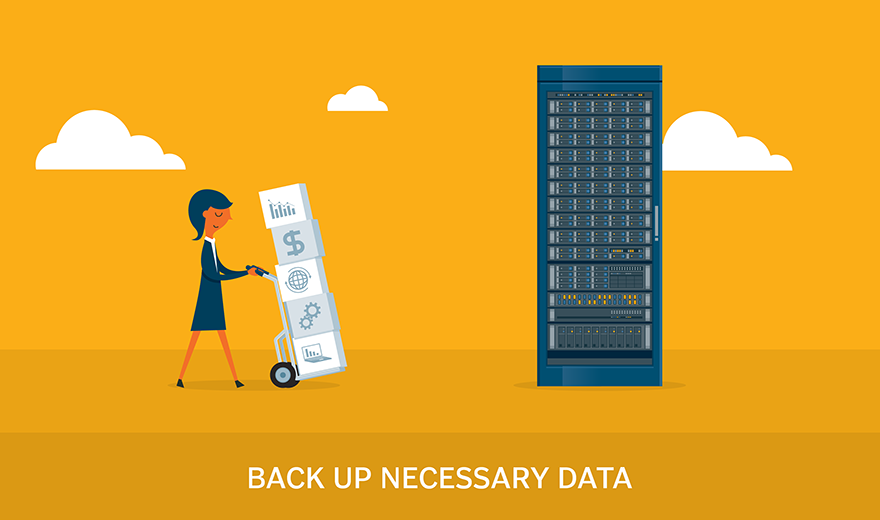
A clean install involves completely removing the previous OS and its data to ease the installation of the new OS. Of course, by choosing a clean install, IT must find a way to back up all the necessary data so users can pick up where they left off after following one of the Windows upgrade paths. This may involve manually checking each user's local storage for key files, relying on users to protect their own data, or -- if users store the majority of their data locally -- an organization-wide data migration to network storage.
An in-place Windows XP upgrade to Windows 10 is not realistic due to compatibility issues. Microsoft built Windows XP to function with completely different hardware and software than Windows 10. IT must take an application inventory and identify any applications with Windows 10 compatibility issues and virtualize them before the install.
Windows 7 is entrenched in many organizations, but with its end-of-life date -- Jan. 14, 2020 -- looming, the time to move to Windows 10 is getting closer. By upgrading Windows 7 to Windows 10, IT will get longer support life from Microsoft and continued feature and security updates.
IT should consider an in-place upgrade for its Windows upgrade from Windows 7. To properly run an in-place upgrade, IT must be sure that its users' desktops have the most recent patches and updates because the in-place Windows 7 upgrade paths won't function properly without them.
It is unlikely that IT will encounter hardware and app compatibility issues due to the similar hardware requirements, but IT pros should always run a test to ensure that they can fix any issues before the upgrade from Windows 7.

Windows 8 may not have been the most popular OS, but it still has some presence in the enterprise.
The upgrade process for Windows 8 is similar to Windows 7. Naturally, IT will encounter fewer issues with compatibility and can consider an in-place Windows 8 upgrade to Windows 10.
Organizations embarking on the Windows upgrade path from Windows 8 must have installed the most recent Windows 8.1 updates to ensure a smooth transition. These updates contain important features and security measures that Windows 10 builds on during an in-place upgrade.
Before any OS upgrade, IT should also perform an application inventory and test all of the apps for Windows 10 compatibility. The Windows 8 upgrade to Windows 10 is no exception, and if IT identifies any problematic applications, it can seek an alternative app that has Windows 10 compatibility or virtualize the application. Removing an incompatible app ensures that other applications and files aren't damaged or corrupted during the transition.