
Getty Images
Configure domain controllers after Server 2025 upgrade
Windows Server 2025 has many new features, but how can you get the most from them? Use this tutorial to configure AD domain controllers and optimize your environment post-upgrade.

When an organization upgrades its domain controllers to Windows Server 2025, the primary focus will undoubtedly be on planning for and performing the actual upgrade. However, there might be various tasks that need to be performed after the upgrade is complete.
This article discusses several steps you can take after upgrading to Windows Server 2025, including many configurations that can help enhance the security of your Active Directory environment. We'll also cover the ongoing monitoring and maintenance tasks to perform once your upgrade is in place and fully configured.
Domain controller configuration for Windows Server 2025
While none of these configuration tasks are absolute requirements -- and some might not be necessary in every organization -- they are intended to help you get the most benefit from the new Windows Server operating system.
Enable JET 32 KB page sizing
Ever since the days of Windows 2000, Active Directory's JET Blue Extensible Storage Engine database has used an 8 KB page size. Windows Server 2025 enables the page size to increase to 32 KB, significantly improving domain controller scalability.
Although there is nothing overly difficult about transitioning to 32 KB database pages, the process can be rather cumbersome, especially in larger organizations. In order to use the larger page sizes, Windows Server 2025 must be running on all of your domain controllers, and you also must be using the Windows Server 2025 domain and forest functional levels.
If you have any domain controllers that were upgraded from earlier versions of Windows using an in-place upgrade, then those domain controllers will not be able to accommodate 32 KB database pages. This can make increasing the page size more complex, as you must demote those domain controllers, perform a clean Windows Server 2025 installation and then promote the machines back to domain controller status. Make sure that your backup software is compatible with the larger page size before proceeding; Microsoft Learn provides a full list of requirements.
Configure account lockout policies
This is also a good time to revisit your organization's account lockout policy. Attackers seeking to gain access to certain accounts will sometimes resort to brute-force attacks, in which they attempt potentially millions of different passwords until they are able to successfully log in. The countermeasure to such attacks is to use an account lockout policy. In doing so, however, organizations will need to make a choice.
Microsoft enables organizations to configure the account lockout policy to automatically lock accounts after a certain number of failed login attempts. This prevents attackers from gaining access to the accounts through brute-force attacks. Conversely, an attacker could use this mechanism against the organization by launching a denial-of-service attack that causes all of the organization's accounts to be locked out at once.
Organizations can select whichever approach best suits their needs. If an organization opts not to lock accounts, it should require long and complex passwords in addition to establishing a notification mechanism that alerts admins to brute-force attempts.
Enforce LDAP signing and encryption
Configuring Active Directory to reject Simple Authentication and Security Layer (SASL) binds that are either unsigned or unencrypted can help improve AD security.
Unsigned network traffic can be captured and used in a replay attack. When successful, attackers can use the intercepted traffic -- such as communications or data transmission -- to impersonate a legitimate user on the network. Replay attacks can also serve as the basis for a man-in-the-middle attack, wherein attackers alter packets midstream.
You can configure AD to require Lightweight Directory Access Protocol (LDAP) signing by way of a simple change to the group policy. However, clients that rely on unsigned SASL binds or attempt to perform binds over a non-SSL/TLS connection will cease to function.
Deploy delegated Managed Service Accounts
Service accounts have always been somewhat problematic for organizations because they are difficult to secure. In Windows Server 2025, Microsoft introduced a new type of service account called a delegated Managed Service Account, or dSMA. These accounts are based on a device's identity, meaning that the account can only be used by a specific device. The password associated with the account is random and stored in AD. Microsoft makes it possible to migrate existing service accounts to dSMAs.
Configure Windows LAPS features
The local administrator password has always presented a vulnerability for Windows desktops. That's because such an account exists on all desktops -- and attackers know that, in a corporate environment, all the desktops likely use the same local administrator password.
Microsoft created Windows Local Administrator Password Solution (LAPS) to address this problem. Windows LAPS automatically creates random passwords for all domain-joined Windows desktops.
Although Windows LAPS has been around for a while, Microsoft has made some improvements in Windows Server 2025. Among these improvements are automatic account management and image rollback detection. Windows LAPS now also supports the use of passphrases and adjustable password complexity.
Audit and transition authentication protocols
Phasing out the use of legacy protocols in favor of modern, more secure protocols will make your Windows Server environment more secure. One such protocol is NTLMv1.
While it is relatively easy to disable the NTLMv1 protocol and transition to either NTLMv2 or Kerberos, haphazardly disabling the protocol can break any processes that depend on it. As such, it's important to audit NTLM usage before disabling the protocol. That way, you can determine exactly which processes, if any, are still using the legacy protocol.
If you determine that there are still workloads or clients that depend on NTLMv1, you can work to upgrade or phase out those particular programs and end your NTLMv1 dependency. Microsoft Learn offers instructions for auditing NTLM usage.

Monitoring and maintenance
Even after everything has been upgraded and reconfigured, it is still important to perform ongoing monitoring of your domain controllers. This monitoring can help detect security issues and problems that could potentially result in an outage. For example, it's a good idea to monitor domain controller replication -- especially in the beginning -- to make sure that your domain controllers are successfully replicating with one another.
Monitor event logs for replication issues and security events
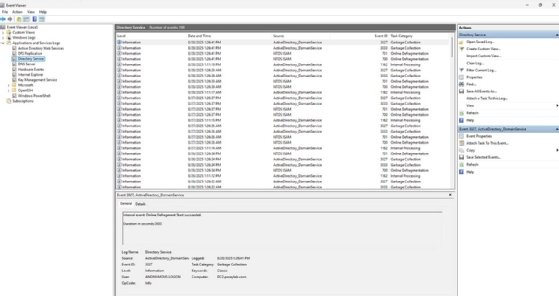
Windows Event Viewer is typically the tool of choice for monitoring Windows. The Directory Services log contains a wealth of information about your AD environment. Similarly, the Security log contains detailed information about various security-related events.
Troubleshoot domain controller replication
If you suspect that you are experiencing AD replication issues, check the Directory Service logs for related events. The following are some of the event IDs to look for:
- 1311. Replication topology problems.
- 1988. A lingering object has been detected.
- 2042. Too much time has passed since the last successful replication.
- 2087. DNS lookup failure.
- 2088. A DNS lookup failure has occurred, but the replication succeeded anyway.
These are just a few of the more commonly cited event IDs. You can get more information on these and other event IDs related to AD replication on the Microsoft Learn website.
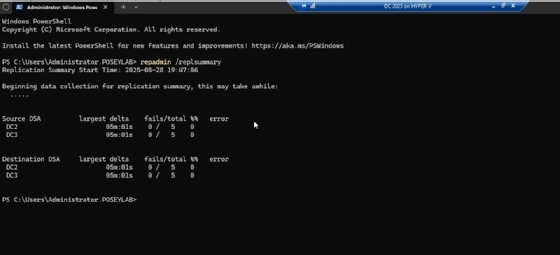
Although Event Viewer might be helpful, it is not the only source of information related to Active Directory. For example, if you need to determine whether the AD replication process is healthy, you can use the Repadmin.exe command-line tool.
Like other Microsoft command-line tools, Repadmin has many different functions associated with it. However, if you just want to quickly get a feel for what's going on, enter the command repadmin /replsummary. The Repadmin tool will then assess whether replication problems exist and summarize them in a report.
Ensure ongoing domain security and performance
Once you have confirmed your AD environment is healthy and properly configured, your final task is to establish ongoing maintenance and monitoring. You will want to track logons, changes to privileges and similar security events in an effort to prevent a breach. Regular patch management can also go a long way toward keeping Active Directory healthy and secure.
It's also crucial to back up your AD environment on a regular basis. Keep in mind that older backup applications might not fully support the Windows Server 2025 domain and forest functional levels. As such, it is important to keep your backup applications up to date to ensure that backups of your Windows Server 2025 Active Directory are fully supported.
Brien Posey is a former 22-time Microsoft MVP and a commercial astronaut candidate. In his more than 30 years in IT, he has served as a lead network engineer for the U.S. Department of Defense and a network administrator for some of the largest insurance companies in America.