Part of:Protecting mobile data with Intune's MAM feature set
Navigating app protection policies with Intune MAM
With Intune MAM, IT leaders can enforce app‑level protection policies that secure corporate data across devices while maintaining a seamless user experience.
IT administrators have different tools available for making sure that corporate data stays secure and protected at all times. An important aspect of those tools is mobile application management (MAM). MAM addresses the management and protection of corporate data within a specific app on a mobile device.
For organizations that use Microsoft Intune, this functionality comes in the form of Intune MAM. A clear understanding of how Intune MAM applies and enforces app protection policies is key to building a secure and consistent mobile management framework.
What is Intune MAM?
Within Microsoft Intune, MAM is the tool to configure, manage and protect apps. Intune MAM is mainly focused on mobile devices, and support for Windows devices is in its early stages, only covering Microsoft Edge currently. On mobile devices, apps become eligible for Intune MAM when they either integrate the Intune App SDK or are processed with the Intune App Wrapping Tool. These approaches enable the necessary features to safeguard corporate data within the app.
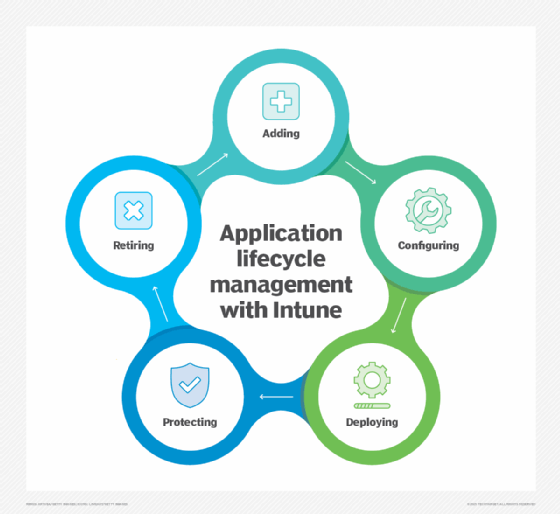
Intune provides app protection policies (APP) and app configuration policies (ACP) through its MAM capabilities. App protection policies are designed to protect data within the managed app, while app configuration policies are designed to configure specific settings within the managed app. Together, these policies enable IT to protect corporate data and deliver an optimal user experience. Organizations can then ensure data security across a wide range of scenarios -- whether Intune MAM is used on its own or alongside Intune MDM.
Intune app protection policy considerations
App protection policies and app configuration policies should be the main focus of IT admins when configuring Intune MAM.
App protection policies and app configuration policies should be the main focus of IT admins when configuring Intune MAM.
The app protection policies are the component that is often directly associated with Intune MAM. Enforcement of these policies is based on the identity of the user. So, any data related to the work account of the user is protected, while any data related to the user's personal account remains untouched. To create that separation of work and personal data, IT can use the different aspects of an app protection policy.
Within an app protection policy, IT should configure the data protection settings, access requirements and conditional launch settings. This means that before creating an app protection policy, admins should think about what data is allowed to move between which apps, what access requirements should be met to open a managed app, and which app or device conditions should apply. At the same time, admins should review any app configuration policies needed to streamline app behavior, since APP and ACP settings often affect each other during deployment. These decisions require careful consideration and planning.
On top of that, Intune MAM should always be used in combination with conditional access, a Microsoft Entra ID feature. In that combination, Intune MAM protects corporate data within the app, while conditional access policies make sure that only a protected app -- one with app protection policies applied -- is able to access that data.
How to create and configure Intune app protection policies
After planning the implementation and configuration of the Intune app protection policy, the actual setup is fairly straightforward. Keep in mind that the exact configuration options might differ slightly per platform, however.
IT can use the following steps to create an app protection policy in Microsoft Intune:
Open the Microsoft Intune admin center portal and navigate to Apps > Protection.
On the Apps | Protection page, click Add and select either iOS/iPadOS or Android.
On the Basics page, provide the basic policy information and click Next.
On the Apps page, open the drop-down menu next to Target policy to and choose the group of apps that should be included in the policy scope -- Selected apps, All Apps, All Microsoft Apps or Core Microsoft Apps. Then, click Next.
On the Data protection page, specify the required data protection settings across the categories of Data Transfer, Encryption and Functionality. Then, click Next.
On the Access requirements page, specify the necessary access requirements, like minimum PIN length, and click Next.
On the Conditional launch page, specify the required app and device conditions, like app and platform version, and click Next.
On the Scope tags page, specify the required scope tags and click Next.
On the Assignments page, specify the required assignment and use filters to differentiate the targeting between managed apps and managed devices. Then, click Next.
On the Review + create page, click Create.
Troubleshooting Intune app protection policies
When the Intune app protection policies are carefully planned and implemented, and users are licensed, admins can use the available reporting to verify that the deployment was successful. For a clear overview, they can rely on the App protection status report. This report provides insight into the compliance status of app protection policies, affected users and any issues those users might be experiencing. It even shows the applied app protection policy. For IT, this should be the starting point for validating the implementation.
Intune MAM's app protection policies are important for protecting corporate apps and data on mobile devices.
If a user experiences issues that aren't clearly reflected in the available reports, local diagnostic logs can provide additional insight. To access these logs, users can open the Microsoft Edge browser app on Android or iOS and type edge://intunehelp into the address bar. This page launches troubleshooting mode and displays an overview of the applied policies for each app. It also lets users share diagnostic logs directly with Microsoft or store them locally for support by IT. These options are available for all mobile devices, whether they're managed or unmanaged.
Peter van der Woude works as a mobility consultant and knows the ins and outs of the ConfigMgr and Microsoft Intune tools. He is a Microsoft MVP and a Windows expert.