Planning a Windows 11 upgrade requires hardware assessment, compatibility testing, phased rollout and change management to reduce disruption and compliance risk.
Windows 10 reached end of support on October 14, 2025. Organizations that have not completed their Windows 11 migrations are now operating under Extended Security Updates (ESU) agreements or in unsupported configurations.
For IT teams still transitioning, the focus has shifted from long-term planning to structured execution and risk reduction. A clear Windows 11 upgrade project plan helps reduce exposure, control costs and minimize disruption.
However, before IT administrators take any of these steps, they'll need to evaluate their existing hardware to know if it is suitable to run the Windows 11 OS.
Windows 11 requirements and recommendations
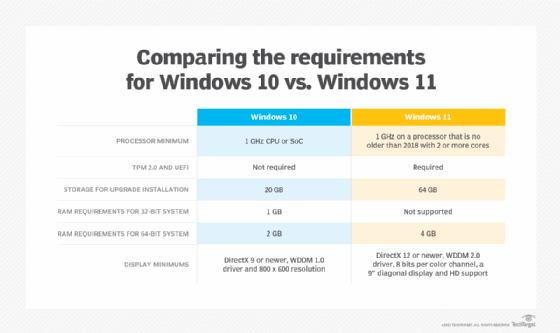
Windows 11 won't run on older PCs because of its hardware requirements. IT administrators need to check these requirements against their existing fleet and plan to replace any hardware that can't run the latest system. These requirements include the following:
UEFI, TPM and Secure Boot capable. Unified Extensible Firmware Interface (UEFI) and Trusted Platform Module (TPM) appeared on Windows PCs by 2006, and Secure Boot in 2011, so these requirements should be in place for endpoints that are part of a refresh cycle.
Processor. Windows 11 requires an 8th-generation or newer Intel CPU to run, AMD 3xxx or newer, and Qualcomm Snapdragon 7c or newer. Be sure to follow requirements for the latest Windows 11 LTSC or regular release -- 23H2 at the time this publishes, with 24H2 expected later in 2024. This roughly translates to PCs built in the second half of 2018 or newer -- less than six years old, in other words.
RAM. Microsoft states that Windows 11 can run on a minimum of 4 GB RAM. Except for kiosks and other limited-use scenarios, however, no Windows 11 PC should be equipped with less than 8 GB of RAM for usability and acceptable performance.
Internet connection and account. Except for certain workarounds, Windows 11 requires internet connectivity and an active Microsoft account for installation and initial setup. This should pose minimal difficulties for most organizations apart from special circumstances.
The best approach to attaining new hardware is to incorporate a Windows 11 upgrade in any planned or upcoming hardware refresh. That said, such upgrades are usually on a set cycle. Buyers should make any new hardware purchases prior to an upgrade -- with Windows 10 preinstalled -- and ensure they meet the Windows 11 requirements.
A clear Windows 11 upgrade project plan helps reduce exposure, control costs and minimize disruption.
Focus on UEFI
The most critical of the preceding items is UEFI 2.0 with Secure Boot. UEFI replaces traditional, older BIOS. It also enables Secure Boot, which protects against rootkits and other boot-time malware. Most business-class systems manufactured in the past decade support UEFI, though some legacy systems might still run BIOS. Identifying and replacing such systems should be top priorities in any Windows 11 migration plan. The other items mentioned above -- namely TPM 2.0, CPUs and RAM -- remain important but should already be addressed through recent hardware refreshes. For many organizations, UEFI support serves as a practical gating criterion for upgrade eligibility.
Organizations worried about these hardware costs can take comfort from Microsoft's longstanding free upgrades from previous to current versions of Windows -- in this case, Windows 10 to Windows 11. This applies to volume licenses and other purchase and support agreements for desktop OSes as well.
Microsoft offers additional support beyond the end-of-life date, but those added costs provide a strong financial incentive for organizations to upgrade quickly. Organizations that purchased ESU can continue receiving limited security patches through October 14, 2028. However, ESU programs are designed as temporary bridges rather than long-term operating strategies.
Windows 11 introduces stricter hardware, TPM 2.0 and storage requirements compared with Windows 10.
8 steps to planning a Windows 11 upgrade
A structured Windows 11 upgrade project plan typically includes the following eight phases.
Step 1: Build a strategic migration framework
A successful Windows 11 migration project plan begins with a strategic framework. This includes the following:
Defining goals. Are you aiming for feature parity or upgrades/enhancements, enhanced security or improved performance?
Establishing timelines. Align upgrade phases with fiscal calendars, hardware refresh cycles and software renewal dates.
Identifying stakeholders. Include IT leadership, department heads and power users in planning discussions.
Budgeting. Account for hardware replacements, licensing, training and potential downtime.
A clear roadmap helps avoid reactive decisions and maintain cross-department coordination.
Step 2: Assess hardware and application compatibility
Before deploying Windows 11, IT must thoroughly assess the existing environment. That means conducting a complete inventory of all systems, especially user endpoints and applications. Use Microsoft tools such as Endpoint Manager or Configuration Manager, or third-party alternatives (e.g., ServiceNow, SolarWinds and similar tools) to take stock of your current Windows fleet. The following elements are key:
Identify devices that lack UEFI or Secure Boot, and obtain replacements.
Flag devices with unsupported CPUs or less than 8 GB (16 is better) RAM and make appropriate changes (replace PCs with obsolete CPUs, add RAM where feasible).
Catalog business applications and dependent elements for compatibility assessment and testing.
For software elements, testing priority should focus on legacy or in-house programs. Most Windows 10 applications work on Windows 11, but the occasional exception will pop up. It's best to create a test matrix to validate compatibility and assess performance.
Step 3: Pilot testing, user experience checks
Create a pilot group of testers to evaluate the migration in a controlled environment. You'll want to include a mix of power users (developers, analysts or data scientists, and IT pros) for detailed feedback and rank-and-file workers (perhaps from HR, finance, data entry and help desk) to make sure typical usage is workable and comfortable for users.
It's a good idea to deploy Windows 11 in waves or by groups, so you can monitor application performance, typical boot times and logins, user interface changes and training requirements, and more. You can use logging and monitoring to capture data about what's happening. But you should also conduct regular surveys to understand user experiences, especially pain points. This feedback helps refine training and deployment strategies.
Step 4: Build a phased deployment plan
Phased rollout helps reduce disruption. It also lets you use what you learn in earlier phases to improve and enhance later phases. A typical sequence of deployment phases looks like this:
Pilot. Small groups with continuous feedback and adjustment.
Early adopters. Power users and IT staff.
Departmental rollout. Deliver training and deploy Windows on a per-department basis.
Full deployment. Upgrade Windows across the organization.
Every phase should have its own schedule and timeline. It's also important to build in performance checks, user satisfaction surveys and feedback mechanisms, with ready access to issue-reporting and resolution processes. Where possible, IT should seek to automate deployment. Microsoft tools for this job include Intune and Autopilot. Third-party tools include SmartDeploy, PDQ Deploy and ManageEngine or Ivanti Endpoint Management platforms.
Integrating Windows 11 devices into the organization's management platform is essential for visibility and control. This confers considerable benefits, including the following:
Enrollment in MDM platforms such as Intune or ManageEngine.
Policy enforcement to drive updates, security and compliance.
Monitoring and reporting to deliver the best performance, illuminate usage and plan for change and growth.
Before taking management into full production (unless you're already there), you'll want to first set up a test environment to validate and adjust management workflows. When it comes to full deployment, you'll have the control and visibility you need from the outset.
Step 6: Get licensing and compliance right
Windows 11 licenses are normally bundled with hardware or through an organization's volume licensing agreement(s). Even so, IT administrators must still confirm that each upgraded device has a valid license. At the same time, they'll want to avoid excess licenses (like those for unused endpoints) to optimize costs and comply with MS licensing terms (e.g., each VM also needs a valid license, and there might be special circumstances for Cloud PC, Azure instances and related environments).
Another consideration is whether to perform an upgrade or a clean install. Each path has its own licensing implications and affects how applications and settings will work. Also noteworthy: Several new Windows 11 features (e.g., Smart App Control, also known as SAC) aren't usable unless Windows 11 is clean-installed.
Step 7: Change management and training
Windows 11 is different enough from Windows 10 to affect users. They must be ready to cope with user interface changes and workflow alterations. Preparing users is the key to a successful migration effort and to keeping support calls to a minimum. To that end, it's a good idea to communicate with users early and often: let them know changes are coming and why they must happen.
Training should be included to help users make the switch, with ample materials available from Microsoft Learn, LinkedIn Learning and third-party providers (e.g., Pluralsight). In-house training for orientation and specific applications can also be beneficial. Help desk and support staff should lead the way through migration, so be sure to train and equip them with user migration scripts, escalation paths and so forth. If users understand the benefits of a new OS, they'll be more inclined to use it well, and to enjoy that experience as much as possible.
Step 8: Monitor and optimize performance
Deployment does not end with installation. It's vital to keep on monitoring system performance and soliciting user feedback. You'll want to compare the Windows 11 experience against Windows 10 baselines and address any areas where the new isn't at least on par with the old.
As you accumulate telemetry and monitoring data, use it to adjust group policies and resource allocations. You'll also find this information essential for planning future upgrades, hardware refreshes and feature rollouts. Ongoing optimization and improvement help ensure your Windows 11 migration delivers lasting value.
When all is said and done, follow the plan
A structured Windows 11 upgrade project plan helps balance technical requirements with business continuity. If you focus on UEFI compliance, phased rollouts and user experience, your IT staff can deliver a smooth, orderly transition. When executed properly, Windows 11 can improve productivity and strengthen endpoint security.
Ed Tittel is a 30-plus year IT veteran who has worked as a developer, networking consultant, technical trainer and writer.