
How to prevent updates on Windows 10 desktops
Windows updates can cause compatibility issues, bandwidth strain or unwanted changes. Find out why some organizations stop Windows 10 updates and how they can manage it.

Some organizations need to pause or block Windows updates to avoid disruptions, and a few built‑in tools let IT control when updates install.
Although Microsoft generally encourages customers to install Windows updates as quickly as possible, there are situations in which it might be better to defer updates. While updates often include security patches and bug fixes, they can sometimes introduce new problems to a system that was previously working well. Fortunately, there are a variety of techniques IT administrators can use to prevent the installation of Windows updates.
Why might an organization want to stop Windows 10 updates?
There are several reasons why an organization might want to prevent Windows updates from being installed. One major concern is that updates might introduce compatibility problems for legacy apps or highly customized environments.
IT teams choosing to prevent updates might also want to avoid feature creep. For example, an organization that operates public-facing kiosks would likely prefer that Microsoft not introduce any new features that might change how the kiosks behave. Similarly, some organizations have created their own hardened Windows images that prioritize security above all else. A generic Windows update could undo much of the work that has been done to lock down the Windows image.
Concerns about excessive bandwidth consumption are another reason to prevent updates. For example, if a research team were operating in a remote field deployment with limited bandwidth available, the team probably wouldn't want to enable Windows Update to deplete the little bandwidth that they have.
These are just a few of the many reasons why an organization might need to figure out how to stop Windows 10 updates. Additionally, in some cases, an organization might not want to permanently disable updates, but rather pause those updates until they can be tested.
4 ways to stop Windows 10 updates
There are a few different methods IT can use to disable updates within Windows 10. Not every option is appropriate for every situation, so it's important to consider which method is the best fit for an organization.
1. Use a centralized patch management tool
The first way to prevent updates on Windows 10 desktops is to use a centralized patch management platform to automate the patch deployment process. Automated patch management might seem like the exact opposite of preventing patches from being deployed. However, patch management tools such as Windows Server Update Services (WSUS) and Microsoft Intune provide ways to prevent the deployment of updates. Admins can configure WSUS so that only patches that they specifically approve are deployed. Intune doesn't enable IT to block all future patches the way that WSUS does, but it's possible to create a policy that prevents Windows devices from being upgraded past a specific version. IT can also defer feature updates for up to a year.
2. Configure Group Policy settings
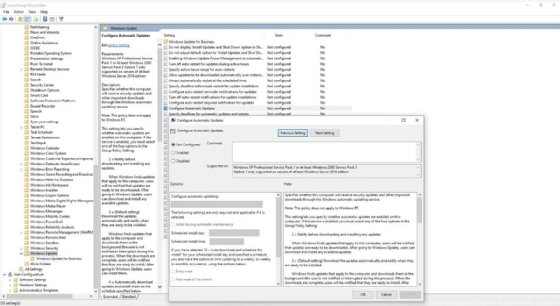
IT can also disable Windows 10 updates at the Group Policy level. Open the Group Policy Editor and navigate to Computer Configuration > Administrative Templates > Windows Components > Windows Update. Next, double-click the Configure Automatic Updates policy. When prompted, enable the policy and configure it to use the second option, 2 = Notify before downloading and installing any updates (Figure 1). Under this setting, Windows Update notifies users when updates are available rather than automatically installing them. The disadvantage of this technique is that it doesn't block users from choosing to install updates.
3. Disable the Windows Update service
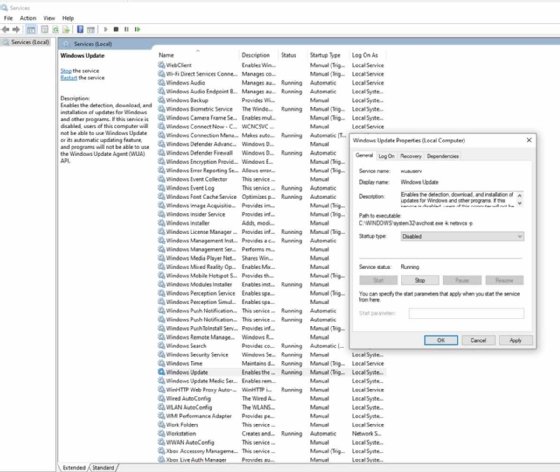
Another way to prevent updates on Windows 10 desktops is to disable the Windows Update service. To do this, enter the Services.msc command at the Windows Run prompt. This causes Windows to open the Service Control Manager. Scroll through the list of services to find the Windows Update service. Double-click on Windows Update and set the Startup type to Disabled (Figure 2). This prevents the Windows Update service from running, thereby preventing all future updates so long as Microsoft doesn't reenable the service.
4. Set a metered connection
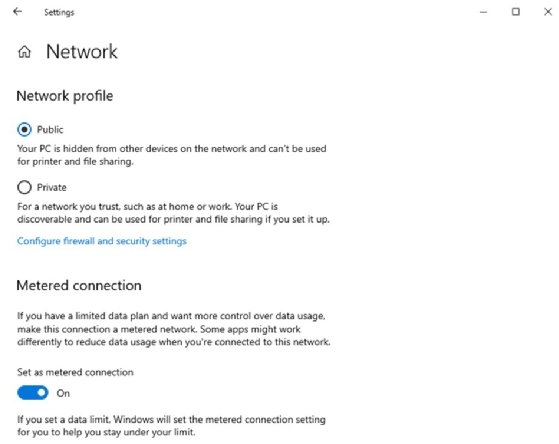
IT can prevent automatic updates by telling Windows that the machine is using a metered connection. The disadvantage to this approach is that some other applications might try to reduce their data usage, which could cause some unintended side effects. Additionally, Windows might still download certain high‑priority or security‑critical updates even when a connection is marked as metered. While metering significantly reduces automatic update activity, it doesn't guarantee a complete block.
To configure Windows to use a metered connection, go to Settings > Network & Internet and click either Ethernet or Wi-Fi, depending on how the PC is connected. Next, click on the network name and toggle on the Set as metered connection option (Figure 3). Repeat this process for all of the machine's network connections.
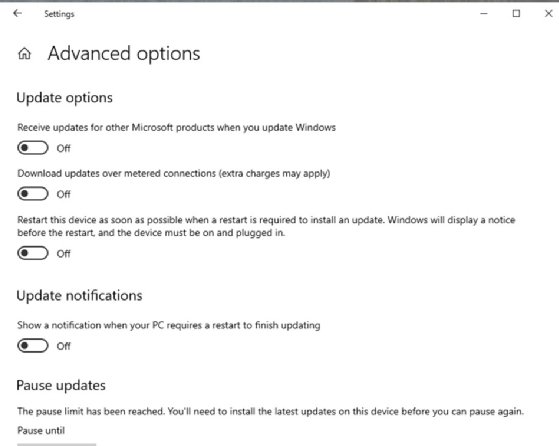
Windows does include a setting that enables it to download updates over a metered connection, so IT must also make sure this setting is disabled. Go to Settings > Update & Security, then select Advanced options. Set the toggle switch under Download updates over metered connections (extra charges may apply) to Off (Figure 4).
Stopping updates in Windows 11
An administrator might choose to stop updates in a Windows 11 environment for the same reasons that they might in Windows 10. The same techniques generally work in both environments, although the Windows 11 GUI differs a bit from Windows 10.
Keep in mind that, because Windows 10 no longer receives regular security updates, blocking updates on the platform carries significantly higher risk. Organizations that must continue using Windows 10 should evaluate Microsoft's Extended Security Updates (ESU) program, which provides paid security patches beyond the end-of-life date. Any strategy that disables or delays updates must account for how ESUs are delivered and ensure that update‑blocking policies don't interfere with their deployment.
Microsoft has also been pushing organizations to switch to Windows Update for Business or other cloud-native platforms since the release of Windows 11. As such, organizations might need to base their strategy for blocking updates on how Windows delivers them.
Brien Posey is a former 22-time Microsoft MVP and a commercial astronaut candidate. In his more than 30 years in IT, he has served as a lead network engineer for the U.S. Department of Defense and a network administrator for some of the largest insurance companies in America.