
Getty Images/iStockphoto
How to migrate applications to Windows 11
As Windows 10 support ends, organizations must plan Windows 11 migrations carefully. Assess apps, data and device configurations to avoid disruptions during the upgrade.

With Windows 10 now past its end-of-support date, many organizations are rushing to complete their upgrades to Windows 11. While such upgrade planning efforts often focus on issues such as licensing or hardware compatibility, it's also important to consider how the OS migration process will affect applications and files that might reside on local machines.
Even though Windows 11 is designed to support most apps that run on Windows 10, the migration process itself can introduce complications if organizations don't fully understand what's installed on their endpoints. Many environments contain a mix of legacy software, locally stored data and one‑off configurations that were never formally documented. These elements can behave unpredictably during an OS transition. Taking time to assess the state of each device -- what apps are present, how they're configured, and where critical data resides -- helps ensure that the chosen upgrade path doesn't disrupt users or break essential workflows.
In-place upgrade vs. clean installation
Windows migrations generally fall into one of two categories. The first category is a clean installation. This approach involves installing the new OS in a way that reformats the system's hard disk, leaving no trace of the old OS or any apps or data that might have previously resided on the system.
The other option is to perform an in-place upgrade. This means installing a new version of Windows on top of the existing version with the goal of preserving system settings, apps and data.
Although performing an in-place upgrade is sometimes the easier of the two upgrade paths, an in-place upgrade isn't always an option. It's not possible when changing architectures, such as moving from a 32-bit to a 64-bit OS or switching from x86/x64 to ARM. Similarly, Microsoft blocks certain migration paths. Organizations can't, for example, migrate from Windows 10 Home to Windows 11 Pro, but with the proper license keys, they can migrate from Windows 10 Home to Windows 10 Pro to Windows 11 Pro. As a general rule, however, the edition of Windows 11 that an organization is installing must match the edition of Windows 10 that is currently running.
Even though an in-place upgrade retains all of a PC's existing settings, apps and data, many IT professionals prefer to perform a clean installation. This is because a clean installation eliminates any unwanted carryover from the previous OS. If a previous Windows installation contained an incorrect configuration setting, a buggy device driver or hidden malware, those things could potentially be carried over to the new OS through an in-place upgrade. Conversely, a clean installation removes any trace of the old OS, enabling a start fresh. Better still, clean deployments can be completely automated using tools such as Microsoft System Center.
During an in-place upgrade, Windows retains any data that resides in Windows library folders. Data residing in other locations on the local system usually survives the upgrade as well, since the upgrade doesn't reformat the hard disk. But if any data exists within the Windows folder or its subfolders, that data might be at risk.
An in-place upgrade also attempts to carry over all compatible apps and device drivers. In this process, though, the upgrade might remove or replace outdated drivers. Similarly, it retains most of the operating system settings, but some settings, such as file associations or certain system policies, might be reset to default values.
Anything that runs on Windows 10 should be compatible with Windows 11. However, there have been documented cases of poorly written apps or device drivers that worked on Windows 10 but not on Windows 11. This is most common with extremely old apps that have been patched to make them run on Windows 10.
An in-place upgrade might also cause problems for legacy apps that have external dependencies. For example, if an aging application has a dependency on an ancient version of the .NET Framework, upgrading to Windows 11 could cause the old version of .NET to be removed, thereby breaking the app.
Apps might also experience problems if the upgrade process causes certain registry values to be reset, or if new security baselines interfere with the permissions that the app needs in order to run.
Preparing applications for a Windows 11 migration
When planning a Windows 11 migration, the first thing IT leaders should figure out is whether an in-place upgrade or a clean Windows installation will be a better fit for their organizations. In either case, however, admins must do some planning before starting the migration process.
Basic preparation
The first step in the planning process is creating an organization-wide app inventory and identifying applications that are likely to be incompatible with Windows 11. IT teams should also identify all systems that contain data. Either back up the data or move it off those systems before beginning the upgrade.
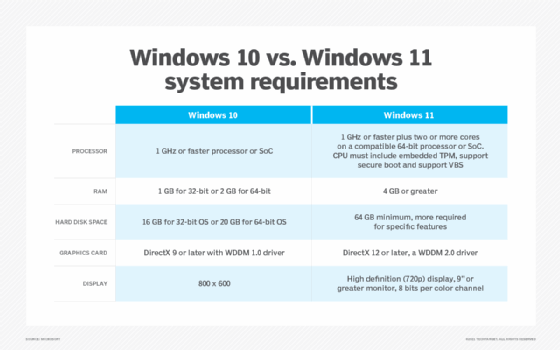
The basic preparation stage is also the point when IT should perform a hardware inventory to make sure the organization's existing hardware adheres to Windows 11's requirements.
Most organizations can handle a Windows 11 migration without the need for external support. Still, this stage is a good time to identify any support resources that might be available, should IT need them.
Application migration strategies
If an organization opts for a clean installation, it must consider how IT is going to install apps onto the PCs once Windows 11 has been installed. There are many options available. For example, admins might use a tool such as System Center Configuration Manager or Microsoft Intune, or they could script the deployment through PowerShell. There are also third-party tools that can help with the app installation process.
In addition to figuring out which tools to use, admins must make sure that they have a copy of the installation media for the various apps and that they are in possession of any required product keys.
Validation and testing
After figuring out which tools IT will use to facilitate the migration process, the next step is to validate those tools in a lab environment. Organizations must deploy various Windows systems in a way that mimics the way that the systems are configured in their production environment. IT can then test and fine-tune the migration strategy within the lab. Throughout that process, be sure to document what works and what doesn't.
Pilot deployment
When IT has done sufficient testing to validate the chosen migration process, it's time to perform a pilot deployment. The goal is to perform Windows 11 migrations on a small percentage of the machines in the production environment. Ideally, these machines should be scattered throughout the organization, thereby enabling IT to test the migration process against a variety of configurations. It's also a good idea to only include power users in the pilot migration. These users are the most likely to be able to provide useful information in the event of a problem.
Final deployment
Once the IT team is satisfied with the pilot deployment's success, the last step is to migrate the rest of the organization's PCs. Upon completion of the migration process, be prepared to perform a deep audit of all the organization's PCs. This audit will help IT identify failed migrations, missing applications and machines that are missing patches or aren't configured in a way that adheres to the organization's security baselines.
In most real-world migrations, apps can be moved from Windows 10 to Windows 11 easily and without issue. Even so, IT leaders can't assume that the migration process will be trouble-free. That's why planning and testing are so important. Thorough testing helps organizations identify problematic applications so they can address them before starting the actual migration process.
Brien Posey is a former 22-time Microsoft MVP and a commercial astronaut candidate. In his more than 30 years in IT, he has served as a lead network engineer for the U.S. Department of Defense and a network administrator for some of the largest insurance companies in America.