
Getty Images/iStockphoto
How to use Core Shell SSH, the PuTTY alternative for macOS
Core Shell is a utility every Mac user who connects to remote resources needs to know. Learn about its exceptional capabilities for managing any number of SSH connections.

Security and network administration depend on SSH. Administrators, developers and power users rely on the protocol to secure connections to remote servers, IoT devices, network devices and cloud resources. Windows users can use the PuTTY utility to connect to remote computers, but what about macOS users who need a better tool than the standard Apple Terminal?
Enter Core Shell. Core Shell offers a highly configurable SSH client that integrates with native macOS functionality and is built on the OpenSSH standard. Let's explain the Core Shell macOS functionality, including how to install and configure it.
What is Core Shell?
For macOS users, SSH from the Terminal is the most common way to connect to remote devices. This approach works well for periodic connections to remote devices for basic configuration changes and service management. When establishing multiple remote connections simultaneously, however, things become a little jumbled and challenging to manage.
Core Shell offers macOS users a Mac-native graphical SSH client with extensive configuration options and a strong feature set. It differs from a standard Terminal-only SSH session by organizing connections into tabs and offering a customizable interface, all while taking advantage of native macOS capabilities and full OpenSSH compatibility.
Core Shell's key features and benefits include the following:
- OpenSSH compatibility
- Relies on a built-in OpenSSH engine that supports all OpenSSH options, such as agent forwarding and certificates.
- Reads native ssh_config files for easy integration and migration.
- Offers contextual help for SSH options.
- GUI and session management
- Provides tabbed sessions for flexible window management and an uncluttered workspace.
- Offers drag-and-drop capabilities for managing extensive environments.
- Offers multiple available color themes and optimizations for readability.
- Enables customizable settings on a per-host basis.
- Integrates with macOS Keychain for password management.
- Offers secure credential storage.
- Practical functionality
- Provides automatic reconnect after network failures or devices exit sleep mode.
- Includes automation support using AppleScript and Automator (Premium edition).
- Features drag-and-drop SFTP for secure file transfers.
Codinn offers two editions of Core Shell: Basic and Premium. Premium includes importing and exporting, automatic syncing and scriptability with AppleScript and Automator. Prices start at $9.99 per month.
Codinn also manages the Core Tunnel application, which provides similar functionality to Core Shell for maintaining SSH tunnels that protect non-SSH traffic.
Core Shell use cases
Core Shell for macOS is designed for those who need a comprehensive SSH tool set to manage an extensive infrastructure. It's also a great choice for those who want a more customizable and user-friendly client interface than the macOS Terminal offers.
Consider the following scenarios for Core Shell:
- A security admin needs to apply security patches to various network devices.
- A sysadmin needs to connect to several Linux servers for configuration changes, application updates and log archiving.
- A developer needs a secure way to upload or download files as part of an orchestration pipeline.
- An admin needs to connect to multiple Raspberry Pi devices for remote management of IoT devices, lobby displays or environmental sensors.
How to install Core Shell on Mac devices
Codinn offers three download options for Core Shell macOS. Note that Core Shell installations differ depending on the download source.
- Codinn Store. Free basic license with no time limit; one device or volume business license.
- App Store. Free basic license with no time limit for all devices associated with an Apple ID.
- Setapp. Free 7-day trial; one device with extra available.
The Mac App Store version of Core Shell could have fewer features than the Codinn store installation due to Apple's strict limitations.
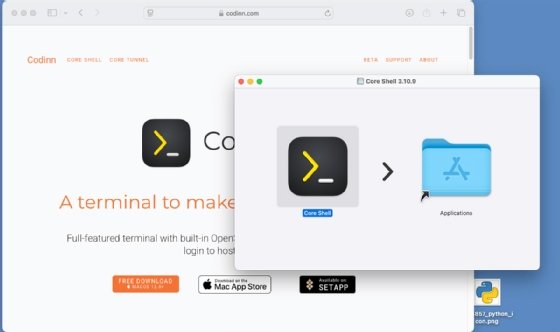
Like most macOS-native apps, Core Shell is easy to install. Begin by downloading the .dmg package file directly from the Codinn site using the link on the Codinn Core Shell webpage.
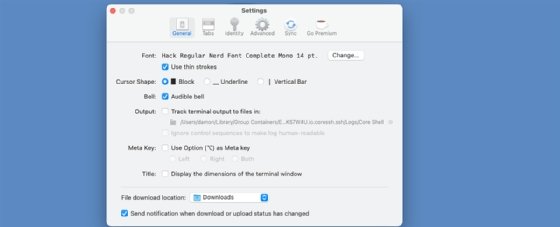
Initial setup tasks include selecting preferred fonts, cursor shapes, themes, meta keys and private key container locations.
Next, create Profiles for your individual SSH connections. Plan ahead to establish a logical naming scheme, theme, color preference and other settings that simplify identifying the connections.
The new connection interface contains three configuration panes: general, connection and forwarding. Set your preferred values in each pane. Your initial configuration includes the target IP address and SSH port number, along with a name to identify the connection.
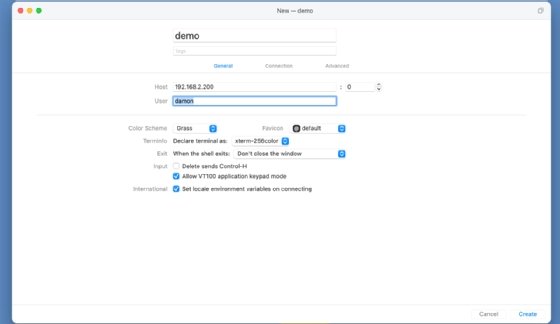
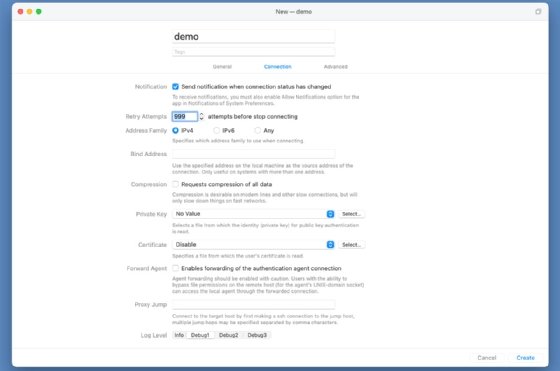
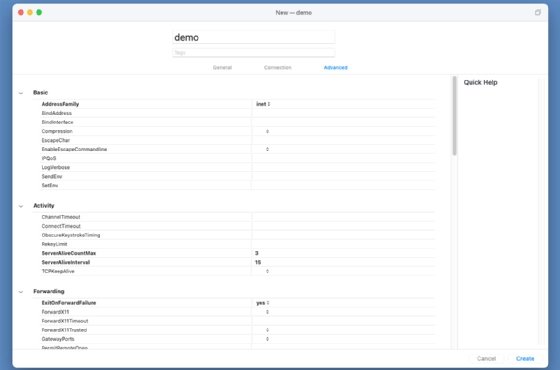
Select Create when you've completed the settings. Your new connection appears in the Profiles window.
Basic Core Shell usage
Double-click a connection profile in the Profiles window to open a new connection.
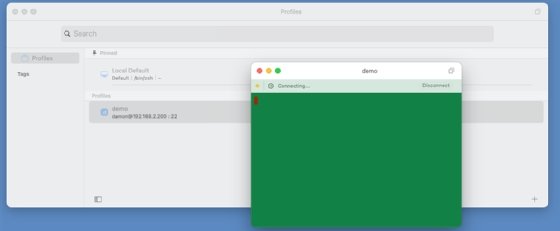
Open the new connections in separate windows, individual tabs or in the default pane, depending on your preferred workflow.
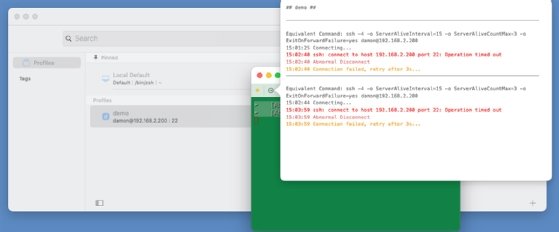
The interface offers extensive troubleshooting. The connection attempt below failed because the configured target 192.168.2.200 does not exist in the network.
Key-based authentication
One particular area of concern is SSH key-based authentication. Thanks to Core Shell's OpenSSH compatibility, it works with the standard ~/.ssh/ configuration files, including the private keys used with key-based authentication. Continue to use the ssh-keygen command to create keys and the ssh-copy-id command to copy your public key to remote hosts.
Support
Codinn hosts a Core Shell community that's available for general questions and configuration options. Before asking the community, check the official Howtos to see whether documentation already exists covering your question. Howtos topics include using AppleScript, enabling logging, keyboard shortcuts, integrating with Oh My Zsh and more.
Core Shell vs. PuTTY for Windows
The initial comparison of Core Shell and PuTTY begins with compatibility. PuTTY is a Windows utility, while Core Shell is for macOS. That could be enough to sway admins one way or the other. For those users with the option to work with either OS, the feature comparison becomes significantly more important.
Core Shell is integrated with macOS's native features, including GUI environment, Apple Keychain identity management, drag-and-drop file management and automation. On a Windows box, PuTTY's interface lacks the same integration, making it a less functional overall experience. PuTTY is a great utility, but for those who work with SSH extensively, Core Shell offers more capability in a highly customizable interface.
What about the macOS Terminal or iTerm2?
The macOS Terminal has native SSH integration, so it is a standard tool for basic connectivity. It pretty quickly becomes cumbersome to manage more than a few connections, however. In fact, many macOS power users prefer the iTerm2 terminal application. One of its most attractive features is unique profiles for SSH connections. Even though the app doesn't offer an equivalent feature list to Core Shell, it's still worth investigating for other CLI tasks.
Damon Garn owns Cogspinner Coaction and provides freelance IT writing and editing services. He has written multiple CompTIA study guides, including the Linux+, Cloud Essentials+ and Server+ guides, and contributes extensively to Informa TechTarget, The New Stack and CompTIA Blogs.