What to do when device settings don't migrate to Windows 11
Device settings don't always make the jump from Windows 10 to Windows 11, leaving IT teams to fix driver issues, hardware conflicts and upgrade failures that disrupt users.
Microsoft ended support for Windows 10 on October 10, 2025. As of that date, the company no longer provides technical assistance, feature updates or, most importantly, security updates for the OS. This means organizations have little option but to upgrade to Windows 11 if they haven't already done so.
By this point, IT administrators should, in theory, be able to perform in-place upgrades on their managed PCs with little problem. The upgrade process is designed to migrate all the user's data and files, including the device settings, while also updating the OS. However, Windows sometimes fails to migrate device settings. In these cases, admins must take additional steps to ensure that connected devices are operational.
Understanding Windows 11 device settings migration errors
When IT admins try to migrate their managed PCs from Windows 10 to Windows 11, the upgrade process attempts to maintain existing device settings. In some circumstances, however, an error message might pop up, stating that the settings were not migrated. This results in a partial upgrade that can affect the UX.
The error message indicates that certain device-related drivers or configurations could not be successfully transferred to the new operating environment. This type of error can be the result of a few possible factors:
One or more device drivers are outdated, corrupted, unsupported or otherwise incompatible with Windows 11. This can often occur with legacy hardware that no longer receives device driver updates.
One or more physical components, such as a graphics card, external drive or USB port, are behaving erratically or are near failure.
One or more physical components or their configuration settings are incompatible with or unsupported in Windows 11.
Specific software components are incompatible with or prohibited by Windows 11. This might include VPN clients, antivirus software, or third-party apps or utilities.
Restrictive group policies are preventing Windows from transferring the settings to the new operating environment.
One or more device-related registry keys are missing or corrupt.
IT might be using a third-party migration tool or drive management tool that interferes with the Windows upgrade process.
When a computer that's being upgraded to Windows 11 encounters a device settings error, the devices that caused the error might not function properly or quit functioning altogether. In addition, the device's configuration settings could be permanently lost during the migration process. A wide range of devices can be susceptible to device settings errors, including legacy hardware, nonstandard devices, USB hubs, network adapters, fingerprint readers, Bluetooth adapters and touchpads.
Disruptions in device operations can affect users in multiple ways. For example, if the driver for an external hard disk drive can't be migrated, the user won't be able to access the files on that drive, resulting in disrupted workflows and a loss of productivity. Even if an updated driver can be manually installed, the user could still be affected by delays until the problem is fixed.
IT teams faced with device-related errors during migration must take troubleshooting steps that address their specific circumstances. In some cases, they might need to replace legacy hardware or software components, or they might need to download the latest drivers and install them manually or through a management platform.
Additionally, administrators who manage large numbers of Windows installations can run into device-related issues on multiple computers at the same time. For instance, an IT team might manage many Windows desktops that are configured with the same graphics card. If the card's driver can't be migrated across all those computers, admins need to roll out driver updates to all those devices, resulting in delays and increased overhead and costs.
How to resolve device settings migration issues in Windows 11
When device settings issues occur, IT admins must try different strategies to resolve the problem. Use the following steps to guide the troubleshooting process, from restarting the computer to performing a clean boot or system restore. Note that an organization's specific circumstances and immediate needs could necessitate a different order or different steps.
1. Restart the computer
Before attempting anything else, IT can try to restart the computer to see whether this resolves the migration issue. A restart shuts down running processes and clears the memory. It also causes Windows to rescan for hardware devices and, in some cases, reinstall drivers. A restart sometimes helps resolve conflicts and address device issues without needing to take any other steps.
2. Identify the devices causing the error
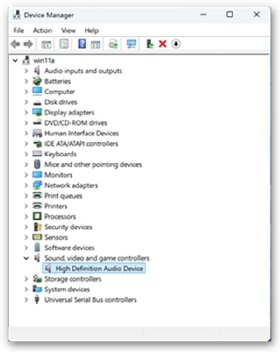
If restarting the computer doesn't help, the next step is to identify the devices that are likely causing the problem. A good place to start is with Device Manager, which provides information about each of the computer's devices. Click the chevron next to any device category to view the individual devices (Figure 1).
Figure 1. The Sound, video and game controllers category expanded in Device Manager, with the High Definition Audio Device selected.
If there is a problem with a device, Device Manager flags it with a yellow exclamation mark. In this way, IT can quickly determine which devices might not have migrated correctly. IT can also access the device's properties to find additional information about the device and its driver.
Device Manager also lets admins scan the computer for hardware changes to ensure it's showing the most current information. To perform a scan, right-click the computer name at the top of the device list and select Scan for hardware changes.
Information about device-related problems is also available in the computer's logs. IT can access the logs through Event Viewer or another tool.
The logs show the device-related errors that occurred during the migration process, which can help identify the problem devices.
Event Viewer makes it easy to review the individual events in each log. It also lets admins sort and filter a log so they can find the events they're looking for more efficiently.
Another option is to review the upgrade log files -- setupact.log and setuperr.log -- for device-related issues. However, the exact location of the files can vary. To determine where to look for the log files, consult the Windows 11 documentation.
In some cases, it might be useful to check the Windows Update history to find information about device-related issues that occurred during an upgrade. Access the history through the Windows Settings app by going to Windows Update > Update history.
3. Verify the device drivers
Settings migration issues often occur because of the device's driver, which might not be supported in Windows 11. If the driver is the problem, IT must update, replace or reinstall it.
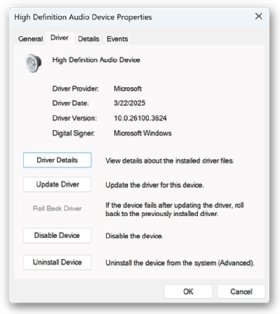
The easiest way to work with drivers in Windows is through Device Manager. After launching Device Manager, locate and right-click on the target device. Then, click Properties. When the Properties dialog box appears, go to the Driver tab. There, IT can view details about the driver, update the driver, disable the device or uninstall the device (Figure 2).
Figure 2. The Driver tab in the Properties dialog box for the High Definition Audio Device driver.
Typically, it's best to try to update the driver before disabling or uninstalling the device. If it's not possible to update the driver through Device Manager, IT might be able to update it manually by downloading it from the vendor's website. Once downloaded, either install it directly onto the computer or use a tool such as Intune or Configuration Manager to manage and install the driver as part of the IT team's larger driver management strategy.
In some cases, the device's vendor might offer a tool for managing and updating the drivers for its devices. Be careful using these tools. They can sometimes affect the Windows update process. The vendor might also provide information about possible driver conflicts and how to resolve potential issues.
If an admin can't update the driver to a version that functions with Windows 11, they might need to uninstall the device. If possible, disconnect the device from the computer first. Uninstalling a device in Device Manager causes Windows to delete the driver and its configurations and remove the device from Device Manager. Restarting the computer without disconnecting the device, on the other hand, prompts Windows to redetect it and try to reinstall the driver.
4. Verify the devices
Device settings problems can sometimes stem from issues with the physical device itself. If it seems like this might be the case, there are several steps IT can attempt, especially with external devices. Steps include restarting the device or disconnecting and then reconnecting it. If the device is plugged into a USB port, IT can also try to connect it to a different port. In some cases, updating the device's firmware might be an option, which can sometimes help resolve device-related issues.
Device settings problems can sometimes stem from issues with the physical device itself.
Another strategy is to run one or more of the Windows troubleshooters. To access the troubleshooters, open the Settings app and navigate to System > Troubleshoot > Other troubleshooters.This screen shows a list of troubleshooters, which can sometimes help resolve hardware- or system-related issues. Windows provides troubleshooters for audio, video, networking, printing and other device types. Admins should also verify that any hardware they're trying to troubleshoot is indeed compatible with Windows 11.
5. Verify the operating environment
Sometimes device-related issues might not be as apparent as an outdated driver or faulty USB port, which requires IT to dig deeper into the Windows environment itself. Start by ensuring that the computer has the latest Windows updates. Then, run the Windows Update troubleshooter, which identifies and tries to repair update-related issues.
Another helpful step is to check whether the computer is running third-party apps or services that might be conflicting with the Windows environment or preventing the system from properly updating its devices. Antimalware software, particularly legacy products, can sometimes cause update issues, as can driver update tools, VPN clients and other types of third-party apps.
Group Policy settings, UEFI settings, and corrupt or missing registry settings can also cause issues. Review those settings as they relate to the problem devices. In addition, consider updating the computer's firmware if it seems to be causing device-related problems.
6. Use available features and tools
Microsoft offers several tools for managing Windows computers. The following command-line utilities can help solve Windows 11 migration problems:
SetupDiag. This tool retrieves details about why a Windows upgrade was unsuccessful. The utility examines the Windows Setup log files to determine the root cause of an update or upgrade failure.
Deployment Imaging Servicing Management (DISM). This tool restores and repairs system files. It's often used in conjunction with the SFC utility. Admins can use the DISM tool to scan a Windows 11 image for corruption and then use it to repair the image.
System File Checker (SFC). This tool scans the system files and restores corrupted or missing files. Microsoft recommends using the DISM utility to repair any corrupted files, followed by the SFC utility to scan the system and replace files.
PnPUtil. This tool lets IT carry out certain operations on driver packages, such as installing a driver package, enabling a device, installing or removing a driver package from the driver store, or viewing the driver packages currently in the driver store.
IT teams that use a centralized platform such as Intune or Configuration Manager to manage their Windows 11 desktops might be able to take advantage of the platform's built-in capabilities when updating to Windows 11 or addressing related settings migration issues.
Management platforms often include features such as pre-upgrade readiness checks, automated script deployment, driver management, policy-based management and upgrade orchestration. For example, admins might use the endpoint analytics features integrated into Intune or Configuration Manager to assess device readiness, or use the driver management features to distribute the latest version of a driver.
7. Perform a clean boot or system restore
If none of the previous steps solve the issue, IT might need to take one of the following steps:
Perform a clean boot. A clean boot launches Windows with a minimal set of drivers and startup programs and enables IT to control which services and programs run at startup. From this simplified environment, admins can then try to upgrade to Windows 11 again.
Perform a system restore. If a clean reboot doesn't work, try to perform a system restore that rolls back the computer. When rolling back the system, admins might need to choose a restore point that precedes a recent update. They can then try to upgrade to Windows 11 from there.
If all else fails, consider performing a clean install of Windows 11 instead of attempting an upgrade. This process removes the existing Windows installation and lets IT start fresh. Some teams prefer this approach because it ensures that they're working with a clean slate. Unfortunately, it means that users will lose all their device settings, along with other settings. But at some point, it could prove the most viable option.
Robert Sheldon is a freelance technology writer. He has written numerous books, articles and training materials on a wide range of topics, including big data, generative AI, 5D memory crystals, the dark web and the 11th dimension.