
Getty Images
How to use the ZMap network scanner
ZMap provides security admins with valuable information about a network's structure and functionality. But it can also generate a DoS situation if it isn't managed correctly.

ZMap, an open source utility under the Apache 2.0 license, is a unique and powerful high-speed network scanner designed to probe the internet. The app focuses on performance rather than depth. As a result, it conducts simple scans that are typically based on a single network port.
Let's examine how to use ZMap, installation options and general functionality, as well as compare ZMap to alternative scanners.
ZMap use cases
ZMap is primarily an information-gathering tool. Various research institutions rely on it to understand deployment patterns, service availability, port and protocol use, vulnerabilities, workflows and other data. These organizations use this information to explain internet utilization and technologies. They also use it to generate additional cybersecurity information.
Consider the following examples:
- Academic and research-oriented internet scans.
- Vulnerability hunting and threat detection on the internet.
- Risk assessments for public-facing internet resources.
- Tracking technology adoption and service use on a per-port basis.
The ZMap Project
ZMap is part of a larger collection of tools called the ZMap Project. The collection enables researchers to gain a deeper understanding of the internet's structure and functionality. ZMap was the first tool in the collection, but many others have followed, including:
- ZGrab. An application-layer stateful scanner that offers greater depth and detail than ZMap but with lower performance.
- ZDNS. A DNS resolver application for rapidly completing lookups and gathering resource record information.
- ZTee. A tool to buffer and maintain scan data for performance.
- ZSchema. A high-level database programming language.
The collection also includes several information-gathering tools for managing X.509 certificates. Certificate services administrators and troubleshooters will benefit from these open source tools, among them ZCertificate, ZCrypto and ZLint. All of these utilities are supported by the U.S. National Science Foundation.
How to install and build ZMap
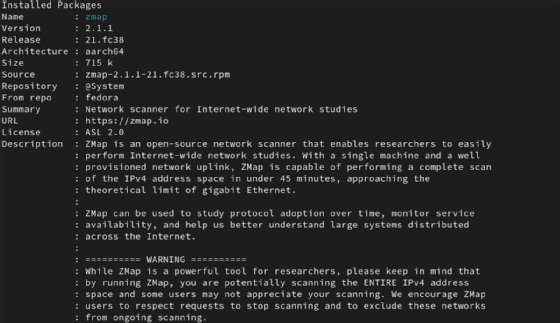
Install the latest version of Zmap using the preferred package manager for your Linux or macOS. Your system might require you to use sudo to elevate your privileges.
Linux users can run the following commands:
- For Red Hat-derived distributions, use dnf install zmap
- For Debian-derived distributions, use apt install zmap
- For the Gentoo distribution, use emerge zmap
Many macOS users maintain software using the Homebrew package manager. It is a handy and powerful utility, especially when installing software not available on the Apple App Store. The Homebrew installation command for ZMap is brew install zmap.
As with other open source software, you can also build the ZMap application from the original source code. ZMap relies on several dependencies, so plan to spend some time setting up your system for this process. You can find details on the ZMap build GitHub page.
Run ZMap inside a Docker container if that best suits your use case.
How to scan with ZMap
Based on its design, ZMap scans as fast as your network interface allows. It generates Ethernet frames for its scans, so beware of the following performance issues:
- Overwhelming your network. Your network devices might not be able to handle ZMap's minimal Ethernet frames adequately, potentially leading to excessive traffic in your own switches, routers and other network devices.
- Overwhelming the target network. Scanning a single network at full speed -- 1 Gbps or more -- could overwhelm the destination network devices, resulting in a DoS situation.
Other more complex TCP-based scanners permit throttling and other controls to avoid these problems. Be careful and respectful when using ZMap to manage these scans.
How to conduct ZMap scans
Use the following ZMap scan to get started. Note that you might need to use sudo to run these scans.
zmap -p 80 -r 128
The -p 80 field indicates a port 80 scan (HTTP). The -r 128 value sets a rate of 128 packets per second. You can also define a target subnet, as long as it isn't listed in the blocklist.txt file.
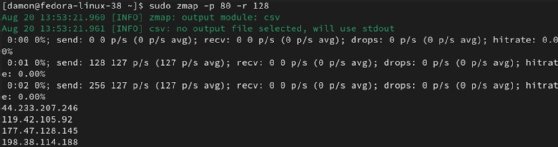
Add the -o zmapresults.csv parameter to write the results to a comma-separated values file for later analysis. ZMap only displays scan status information instead of results on the screen when using this option. Use the -O list option to display results in a human-readable format.
Try scanning various ports with ZMap. The following are a few options:
- -M udp -p 53 to check DNS-specific information.
- -p 80 -o scan.json -O json to format results for JSON.
- -r 1000 implements rate limiting to prevent overwhelming the source or destination networks.
Use the --verbosity option to add more details to the results.
Various techniques can improve performance or modify the scan's accuracy to meet your needs. Refer to the Getting Started Guide for additional options.
ZMap configuration F=files
ZMap uses two configuration files to manage its scans. Modifying these files enables you to block specific subnets or customize ZMap, eliminating the need to continually specify particular options.
- blocklist.conf -- this file contains various subnets defined as reserved, causing ZMap to ignore them, thus improving performance. You can specify additional subnets you want the tool to avoid scanning.
- zmap.conf -- instead of continually setting bandwidth parameters in your ZMap commands, you can configure default values using this file. The file resides at /etc/zmap/zmap.conf by default on Linux systems.

ZMap documentation and community
The ZMap Project is generally well documented. The specific ZMap utility has several sources of information, including the following:
- The Installation Guide offers instructions on using package managers to install ZMap or build it from source code.
- The Getting Started Guide is a comprehensive guide covering standard and advanced scanning options, warnings and troubleshooting steps.
- The Scanning Best Practices includes basic guidelines for responsible and effective scanning.
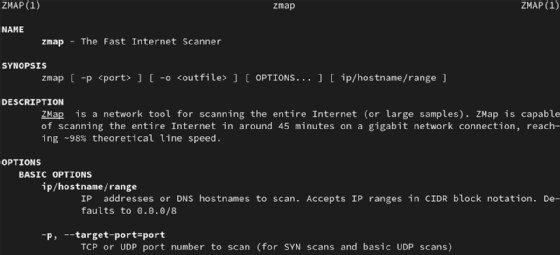
Like many other Linux utilities, ZMap includes man pages for quick reference.
Consider asking questions -- or answering them -- in the ZMap GitHub discussion boards.
ZMap vs. alternate scanners
Security managers can choose among a variety of network scanners, so what makes ZMap different?
ZMap vs. ZGrab
Begin by comparing it to another utility from the ZMap Project, ZGrab. ZGrab is an application-layer scanner that provides extensive capabilities and includes TCP handshakes for banner grabbing, certificate access and similar data. These deeper scans come at the price of performance compared to ZMap.
- ZMap. Quicker scan of large subnets, including the internet, at the transport layer using TCP/UDP.
- ZGrab. Slower and deeper scans at the application layer for additional details, such as banner grabbing.
Consider using ZMap for general reconnaissance and ZGrab for service-level queries.
ZMap vs. Nmap
No port scanning discussion is complete without mentioning Nmap.
Nmap gathers more information and offers greater extensibility than ZMap and ZGrab. Nmap tends to be the slowest of the three -- depending on the scan -- but provides more comprehensive results, including OS detection, scripting and service mapping.
Nmap is an essential cybersecurity tool, while ZMap and ZGrab are better for general research. That's not to say ZMap doesn't help users understand security concerns, but it's not designed with the stealth capabilities or flexibility of a tool like Nmap or tcpdump. Still, it's well worth the time to learn how to use ZMap, as well as its capabilities and best practices.
Editor's note: It is possible to use ZMap both lawfully and unlawfully. It is up to you to ensure your usage is lawful. Get appropriate permission and approval before performing port scans, and handle the information obtained ethically. If you are unsure whether your usage is lawful, do not proceed until you have confirmed that it is -- for example, by discussing and validating your planned usage with your organization's counsel.
Damon Garn owns Cogspinner Coaction and provides freelance IT writing and editing services. He has written multiple CompTIA study guides, including the Linux+, Cloud Essentials+ and Server+ guides, and contributes extensively to Informa TechTarget, The New Stack and CompTIA Blogs.